Gen2 Wireless Upgrade for Arcade2TV-XR (Tankstick VR)
Recommended: Use the Arcade2TV-XR Web Configurator
We now recommend the Arcade2TV-XR Web Configurator for controller remapping and supported firmware upgrades for the Arcade2TV-XR controller, Gen2 wireless dongle, and Haptics PCB:
<https://xgameroom.com/arcade2tv-xr-configurator/>
You can also find this tool from the home page of shop.xgaming.com.
The web configurator runs directly in a supported browser on Mac or Windows PC, lets users select the desired firmware on the web page, and removes the normal need to download separate firmware files or Windows-only software.
If the web configurator is unavailable, or if support specifically asks you to use the local tool, you can still use the downloadable Arcade2TV-XR software and the manual firmware files listed in this article.
Important: Always choose the firmware for the correct component: Arcade2TV-XR controller, Gen2 wireless dongle, or Haptics PCB. Gen1 dongles are not firmware-upgradable.
Buy the Gen2 Wireless Dongle here → <https://shop.xgaming.com/products/x-arcade-gen2-wireless-dongle-upgrade-for-arcade2tv-xr>
The X-Arcade Gen2 Wireless Dongle is a direct upgrade to the stock / Gen1 dongle included with early Arcade2TV-XR systems.
It was developed to address real-world issues reported by users—especially compatibility with 3rd-party battery headstraps, lack of mode switching, and long-term durability—while adding new features that expand how and where you can use your Arcade2TV-XR controller.
⚠️ Important Compatibility Notice
(Tankstick Max, Solo, Dual, etc.)
- This dongle is designed ONLY for Arcade2TV-XR (Tankstick VR)
- It does NOT work with other X-Arcade Tankstick models
What’s Improved Over the Stock / Gen1 Dongle
✔ Improved 3rd-Party Battery Headstrap Compatibility
Gen2 can improve third-party battery-headstrap compatibility, but this is not a guarantee for every BoboVR, KIWI or other strap model. A reviewed Quest 3 customer reported constant beeping with a Bobo strap and Gen2 even though their previous Gen1 setup had worked. That report does not prove every Gen2 unit is defective or that Gen1 is universally compatible.
Support recommended testing the dongle directly without the strap, restarting the headset with the USB-C port empty, then comparing charging/input after the dongle is recognized and the strap is attached. That case has no reported result: the sequence is an outcome-unconfirmed diagnostic, not a guaranteed fix. Record the exact strap model, dongle generation/firmware and direct-versus-pass-through behavior, and contact support if beeps or dropouts continue. Do not buy an upgrade solely on a promise of universal third-party battery compatibility.
✔ Multi-Mode Support (New Feature)
Unlike the original dongle, the Gen2 dongle supports switchable input modes, giving you far more flexibility.
Default Mode – Keyboard Mode
- Required for Pinball FX VR
- Works exactly like the stock dongle out of the box
X-Input (Dual) Mode
- Plug the Gen2 dongle into the PC; power the original XR through rear USB-C and leave USB-B disconnected for wireless use. The controller USB-C power port is not its updater data connection.
- Enables wireless two-player gameplay
- Ideal for PC, Steam Deck, and modern games
X-Input (Pinball Mode)
Allows gameplay in:
- Pinball VR Classic
- Star Wars Pinball VR (Meta Quest)
Uses standard X-Input (gamepad) controls
⚠️ Note: Positional pinball mapping (such as Pinball FX VR) is not supported yet in this mode.
✔ Firmware-Upgradable Dongle (Major Upgrade)
This is a significant improvement over the Gen1 dongle.
The Gen2 dongle is firmware upgradable using the Arcade2TV software tool, allowing future improvements, fixes, and compatibility updates.
This was not possible with the original dongle.
Arcade2TV Software Tool Download (Windows PC): Download link
✔ Improved Durability & Physical Design
- Stronger housing for long-term use
- Improved internal design for better reliability
- Designed for frequent plug / unplug scenarios
✔ Strap Hole + Included X-Arcade Strap
The Gen2 dongle includes:
- A dedicated strap hole
- An X-Arcade branded removable strap
This allows you to secure the dongle to your pedestal or stand, reducing the risk of loss when moving or storing your setup.
Power & Charging Safety Notice
- Supports USB-C charging up to 60W MAX
- Do NOT exceed 60W
⚠️ Using chargers above 60W may cause overheating and permanent damage.
Required Firmware Update (Mandatory)
To use the Gen2 dongle correctly, your controller must be updated.
Arcade2TV-XR Controller Firmware: use a documented Gen2-compatible matched branch.
For original Arcade2TV-XR / Tankstick VR with Gen2, v3.62 is a historical supported branch, not the only working wireless firmware. For the documented disconnection fix, use controller v3.64 with Gen2 dongle v3.43v2 and Haptics PCB v1.8 if installed. A customer who still froze on v3.62 confirmed operation after the matched v3.64/v3.43v2 update. Confirm dongle generation and follow the current component-specific guide; never load a controller file into a dongle or Haptics PCB.
Firmware Download: Download link
Video:Updating Arcade2TV-XR Controller Firmware
Plays from 00:02
Verify the installed dongle version. A v3.64 controller stability update requires the matching v3.43v2 Gen2 dongle update; include Haptics PCB v1.8 if the separate kit is installed.
How to Pair the Gen2 Wireless Dongle
Pairing only needs to be done once, unless the dongle or controller is reset.
Pairing Steps
- Plug the Gen2 Wireless Dongle into your target device (Meta Quest, PC, Steam Deck, etc.).
- Power the Arcade2TV-XR / Tankstick VR using the rear USB-C port.
- Press and hold the button on the Gen2 dongle for 3–5 seconds, then release.
- The dongle will enter pairing mode and connect automatically.
- Once paired, the connection will be saved for future use.
Pairing Notes
- If pairing does not complete, unplug and replug the controller’s rear USB-C power and try again.
- Pairing mode is only triggered by a press-and-hold (short presses are for mode switching).
- The dongle will automatically reconnect the next time both devices are powered on.
Video:Gen2 Dongle Pairing
Plays from 01:15
⚠️ IMPORTANT: Gen1 vs Gen2 Dongle Compatibility (Read Before Updating)
Before performing any firmware upgrade, please confirm which wireless dongle you have.
Gen1 Dongle (Standard with Original Purchase)
• This is the dongle included with your original Arcade2TV-XR / Tankstick VR bundle. • It was not purchased separately. • ❗ This dongle is NOT firmware upgradable. • ❗ It is NOT compatible with Gen2 firmware.
Attempting to install Gen2 dongle firmware onto a Gen1 dongle will permanently disable the device.
If your dongle came in the original box with your controller and you did not purchase a separate Gen2 upgrade, you have a Gen1 dongle.
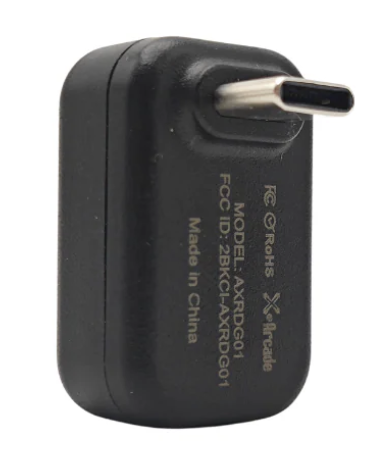
Gen2 Dongle (Purchased Separately / Included with Haptics Kit)
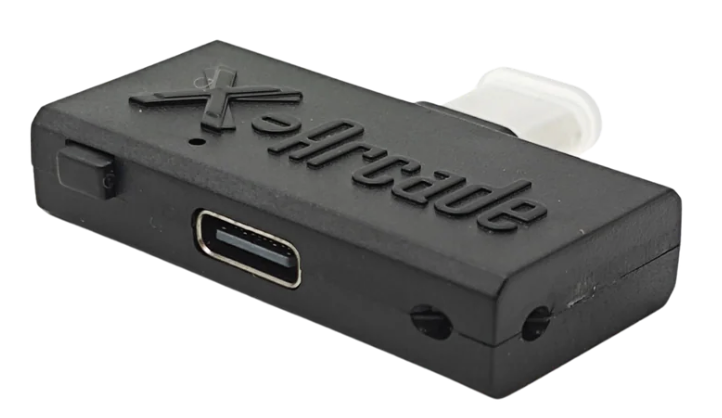
• This dongle is purchased separately as an upgrade • It is also included with the X-Force Haptics Kit • ✅ Firmware upgradable • ✅ Compatible with the Gen2 firmware versions listed on this page
If you specifically purchased a Gen2 wireless upgrade or received one with your Haptics Kit, you have a Gen2 dongle.
Mac and Windows Users - Arcade2TV-XR Web Configurator
Mac and Windows PC users can perform supported firmware upgrades using the Arcade2TV-XR Web Configurator:
Arcade2TV-XR Web Configurator: <https://xgameroom.com/arcade2tv-xr-configurator/>
⚠️ Please Note:
Recommended: Use the current Arcade2TV-XR Web Configurator first. It is cross-platform for Mac and Windows PC and supports the Arcade2TV-XR controller, Gen2 wireless dongle, and Haptics PCB firmware workflows.
If you are unsure which dongle you have, please contact support before attempting any firmware upgrade.
Upgrade Gen2 Dongle Firmware (Optional/When Required)
All Gen2 wireless dongles ship with v3.41v2 pre-installed.
You only need to update the dongle firmware if instructed by X-Arcade Support, or when upgrading to the latest controller and haptics firmware to fully resolve the USB disconnection issue.
Available Gen2 Dongle Firmware
v3.41v2 (Stock Version) • Default firmware shipped with all Gen2 dongles • Recommended for general use • Compatible with Arcade2TV-XR controller firmware v3.62 and earlier
Download: Gen2 Dongle Firmware v3.41v2
v3.43v2 (Latest – Required for USB Stability Fix) • Required when using:
• Fixes random USB disconnections caused by host device differences • Works with or without the Haptics Kit installed
- Arcade2TV-XR Controller Firmware v3.64
- Haptics PCB Firmware v1.8 (if installed)
Download: Gen2 Dongle Firmware v3.43v2
⚠️ Important Compatibility Note To fully fix the USB disconnection issue, all related components must be updated together:
Haptics Kit Firmware Upgrade Instructions:How to Upgrade X-Force Haptics Kit (Haptics PCB Firmware)
• Arcade2TV-XR Controller: v3.64 • Gen2 Wireless Dongle: v3.43v2 • Haptics PCB (if installed): v1.8
Steps (Only If Updating)
<https://shop.xgaming.com/atv-config-tool>
- Download the Arcade2TV Software Tool:
- Plug the Gen2 dongle into your PC.
- Open the Arcade2TV software tool.
- Select Gen2 Dongle Firmware Update and follow the on-screen instructions.
- When finished, unplug and replug the dongle.
- Re-pair the dongle if needed (press and hold the button for 3–5 seconds).
Video:Gen2 Wireless Dongle Firmware Upgrade GuidePlays from 00:40 to 01:14
How to Switch Input Modes (LED Indicators)
Use a short press on the button located on the Gen2 dongle to cycle through input modes.
Each mode is indicated by a blinking LED color.
Mode 1 – Keyboard Mode (Blinking Red)
- Default mode
- Required for Pinball FX VR
- Used for keyboard-based VR and PC games
Mode 2 – X-Input (Dual) Mode ( Blinking Green)
- Designed for PC and Steam Deck
- Enables wireless two-player gameplay
- Plug the Gen2 dongle into the PC and power the original XR through rear USB-C; leave USB-B disconnected for wireless use.
- Functions as a standard X-Input gamepad
Mode 3 – X-Input (Pinball Mode) (Blinking Purple)
- Designed for VR pinball titles on Meta Quest
- Compatible with:
- Pinball VR Classic
- Star Wars Pinball VR
- Uses X-Input controls
⚠️ Note: Positional pinball mapping (Pinball FX VR) is not supported yet in this mode.
Mode Switching Notes
- Short press → switch modes
- Press & hold (3–5 seconds) → pairing mode
- Selected mode is saved and persists after power cycling
Quick LED Reference
Blinking Red → Keyboard Mode Blinking Green → X-Input (Dual) Mode Blinking Purple → X-Input (Pinball Mode)
Here’s a clean, copy-paste–ready troubleshooting section written to match the tone and structure of the existing support article. You can drop this directly into the document as a new subsection.
Star Wars Pinball VR – Flipper Buttons Not Working (Meta Quest)
If the side flipper buttons do not work when playing Star Wars Pinball VR on Meta Quest using the Gen2 Wireless Dongle, this is expected behavior until the in-game control setting is adjusted.
With the correct documented Gen2/controller firmware and Pinball-mode input, changing the in-game flipper mapping can be sufficient. Do not rule out firmware or dongle state solely from the symptom, and do not repeat this setting change if it already failed.
Cause
By default, Star Wars Pinball VR assigns flippers to LT / RT, which do not map to the physical side flipper buttons on the Arcade2TV-XR.
Solution (Required In-Game Setting Change)
Follow these steps inside Star Wars Pinball VR:
- Launch Star Wars Pinball VR on your Meta Quest.
- Walk up to the TV screen inside the game environment.
- Open Options.
- Go to Control Customization.
- Change the flipper controls from:
- LT / RT
- to → LB / RB
- Confirm and exit the menu.
Once this change is applied:
- Test whether the side flipper buttons now operate the table.
- If the mapping test passes, no additional reflash is needed merely for this setting. If it fails, record actual versions, mode and already-tried steps before support selects another action.
Notes
- This setting is specific to Star Wars Pinball VR.
- Other pinball titles (such as Pinball FX VR) do not require this adjustment.
- The selected control layout is saved by the game and will persist for future sessions.
Source article: <https://support.xgaming.com/support/solutions/articles/12000106968-gen2-wireless-upgrade-for-arcade2tv-xr-tankstick-vr->
Gen2 dark after a controller file was loaded: component-specific recovery
In one original-XR case the Gen2 dongle went dark and disappeared from the updater after controller v3.62 was loaded onto it. Support directed hold-the-dongle-button while plugging it into a PC and its correct stock v3.41v2 file; the customer confirmed reinstalling v3.41v2 restored operation. This is a historical stock-branch recovery, not permission to mix stock dongle firmware with controller v3.64.
Identify Gen2 and the file already attempted before flashing. Follow the supported configurator or support's recovery steps, wait for detection, select only the matching Gen2 file, then confirm completion and normal reconnect. Use the branch table above: controller v3.64 requires Gen2 v3.43v2 and kit v1.8 if installed. Re-pair with controller USB-B disconnected and USB-C wall power, and test actual input in the failing game. If detection fails, report target, file and failed steps rather than assuming permanent hardware damage. Gen1 is not firmware-upgradable.
Star Wars / Classic mapping already tried: preserve the actual recovery sequence
Scope: original Arcade2TV-XR, separate Haptics Kit and Gen2 on Quest; not XR MAX. In a January 2026 test history, changing in-game settings alone did not restore side flippers. A tested replacement Gen2 restored Star Wars side-flipper input, but physical nudge/plunger and Classic play still failed. After subsequent Haptics PCB and matched component updates, the production original-XR setup was reported working across FX, Star Wars and Classic. This combined recovery does not prove a single component fault or justify an automatic replacement/flash.
The prototype in the same test still lacked nudge after updates, and Star Wars sometimes needed closing/restarting after switching titles. Do not claim every prototype/revision has the same result or that switching titles can never cause an issue.
- Record controller, Gen2 and kit versions, actual mode and the exact game/table. Keep Pinball FX VR's red keyboard branch distinct from other titles' purple Pinball/XInput branch.
- Test side flippers after the documented in-game LB/RB adjustment. If it already failed, report that instead of repeating it as guaranteed.
- Follow the current component-matched guide with support; this January sequence is historical, not a recommendation to install old firmware or mix versions.
- Retest side flippers, physical plunger, physical nudge and audio vibration separately. For a title-switch issue, fully close/relaunch the affected game and report recurrence. A working FX game does not prove Classic or Star Wars is fixed.
Missing purchased Classic tables are a separate account/content-entitlement issue, not a reason to reflash controller hardware. In June 2026, reinstall and reboot did not restore one customer's tables; staff said X-Arcade cannot inspect Zen purchases/licensing and directed the already-contacted Zen support route. No entitlement restoration was confirmed.
Lost original Gen1 dongle: replacement path
For an original Arcade2TV-XR / Tankstick VR setup, support stated in October 2026 that the Gen1 dongle is no longer produced. Do not promise an original Gen1 replacement or use a generic Bluetooth adapter as a substitute.
The documented Gen2 upgrade is a possible replacement path for the supported original-XR controller. Before buying, confirm your exact controller revision and current firmware with support, then use the component-matched branch, pairing and game mode instructions above. Gen1 is not firmware-upgradable; never flash a Gen2 file onto it. Check the current listing or support for availability and price. A case-specific discount is not a general offer.
The lost-dongle case did not report receiving, pairing or testing a Gen2 replacement, so successful recovery is outcome unconfirmed. After a supported upgrade, confirm pairing and actual input in your intended game; if it fails, report versions, mode and observations rather than guessing compatibility. The Gen2 strap hole can help secure it; a customer request for built-in storage is not a product-design commitment.
Before the Gen2 upgrade arrives: preserve Gen1 wireless use
Scope: original Arcade2TV-XR / Tankstick VR, not XR MAX or another Tankstick. Do not update the controller to the Gen2 v3.xx branch merely because an order-confirmation email arrived if you still need your existing Gen1 dongle. A customer completed the controller upgrade before the Gen2 arrived and then confirmed that the existing Gen1 wireless connection no longer worked. Plan the switch when the matching Gen2 hardware is available; the purchase itself does not make Gen1 compatible.
Support identified v2.27 as the applicable Gen1 controller branch in that case and suggested a support-directed rollback while waiting. No rollback result or later Gen2 gameplay was reported. Do not flash a controller file onto Gen1, assume every board can use every earlier version, or downgrade a working matched Gen2/Haptics setup. If already updated, give support the actual controller revision and installed version before selecting a compatible rollback or completing the Gen2 migration.
Controller updater says No device found: check the data port first
For the original XR controller in the downloadable Windows configuration tool, use the square USB-B data connection to the PC. Rear USB-C power alone is not the controller's updater data connection. In a customer-confirmed case, correcting USB-C-only use allowed the controller upgrade to complete. This did not prove later wireless compatibility or that administrator launch or mode changes independently fixed detection.
Follow the component-specific firmware guide. For that local tool use the documented Keyboard/D-Input update mode; a power light alone is not successful detection. Proceed only once the intended controller is detected, wait for completion and read back its version. If still undetected, report the exact connection, component and error rather than trying unrelated firmware. After migration, pair the matching dongle and test actual input in the intended game separately.
Quest Ice Cold Beer: purple mode did not provide the requested two-joystick mapping
Scope: original Arcade2TV-XR with Gen2 on a Quest running the sideloaded Ice Cold Beer game described in the reviewed case, not XR MAX or every dual-stick game. Earlier staff advice that purple Pinball/XInput mode would map Player 1's physical joystick to the left thumbstick and Player 2's to the right did not match the customer's test: only the left joystick worked. The customer could still use the Quest hand controller for the other side. A later test found that two bottom Player 2 buttons produced up/down actions in that game.
Staff then clarified that the current dongle mapping did not directly provide the game's requested two-joystick behavior. A custom mapping was a feature request, not a released update, supported workaround or promised development schedule. Do not keep repeating purple mode as a confirmed fix or assume a working pinball game proves this game's dual-stick compatibility.
Record the exact game/build, controller and dongle firmware, selected mode and what each physical control actually does. Separate a control that does nothing from one sending a different axis/button. Give support the failed purple-mode test and observed button outputs before changing mappings or considering firmware. No tested direct-USB alternative or successful custom mapping was reported. Ask support about current support for that exact game; do not install an unidentified build or buy an adapter on the assumption that it will supply the missing mapping.