Getting Started with Arcade Ranger: Step by Step Guide for the X Arcade Arcade2TV XR
Arcade Ranger is a unique VR/MR experience from Pumpkin VR that comes bundled with the X‑Arcade Arcade2TV‑XR (Tankstick VR) controller. You don’t need to purchase the game separately: the last page of the Arcade2TV‑XR manual contains a one‑time use code that redeems both Arcade Ranger and a VR pinball game for your Meta Quest headset. Once redeemed, you can build your own virtual arcade, decorate it with neon lights and posters, drop in retro cabinets and mini‑games, and play them with a physical arcade stick. This guide walks you through setup, customization and advanced features so you can make the most of your new arcade.
For a hands‑on tutorial, watch our YouTube guide.
1. What You Need
- A Meta Quest 2, Quest 3 or 3S headset with sufficient storage for the game.
- The Arcade2TV‑XR (Tankstick VR) with its included Bluetooth dongle.
- Game ROMs/Cores for the cabinets – you must legally own the games you use (X‑Arcade cannot supply ROMs).
- Optional: A PC with SideQuest for copying files (see Section 4).
2. Redeem & Launch Arcade Ranger
- Locate the redemption code printed on the last page of your Arcade2TV‑XR manual. Visit activation‑code.xgaming.com and submit your email address and code.
- Within 24–48 hours you will receive two separate emails with Meta Store redemption instructions for Arcade Ranger and the pinball title. Follow those emails to redeem the games to your account.
- Before launching the game, plug the included wireless dongle into your Quest headset’s USB‑C port. This establishes a wireless connection between the Arcade2TV‑XR controller and the headset so you can play retro games in Arcade Ranger.
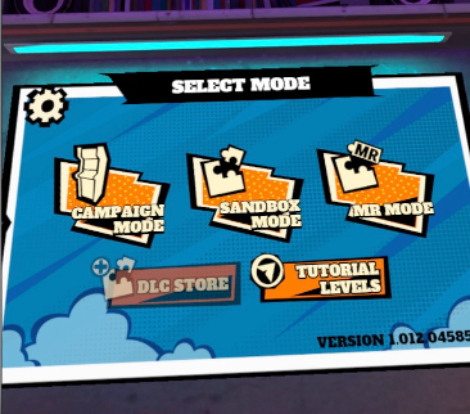
- After redemption, put on your Quest headset, download the games, and launch Arcade Ranger from your library. The game loads into a lobby where you can choose either Sandbox (VR) or XR (Mixed Reality) mode.
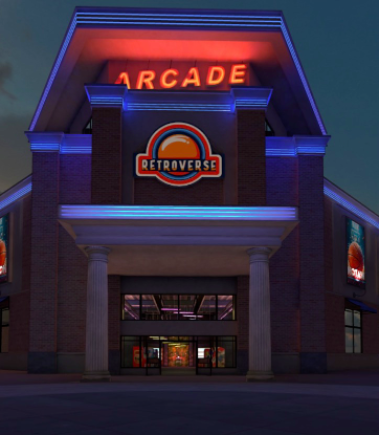
- If you’re new, start with Sandbox mode to build your arcade in VR. XR mode blends cabinets into your real room and uses the same mapping process.
3. Map the Virtual Cabinet to Your Arcade2TV‑XR
Mapping pairs a virtual cabinet with your physical controller so that every joystick movement and button press translates into VR. Use these steps:
- Select a cabinet: Walk to a machine or teleport to it using the teleport shortcut (see Section 6). Point at the cabinet and press the right‑hand trigger on your Quest controller.
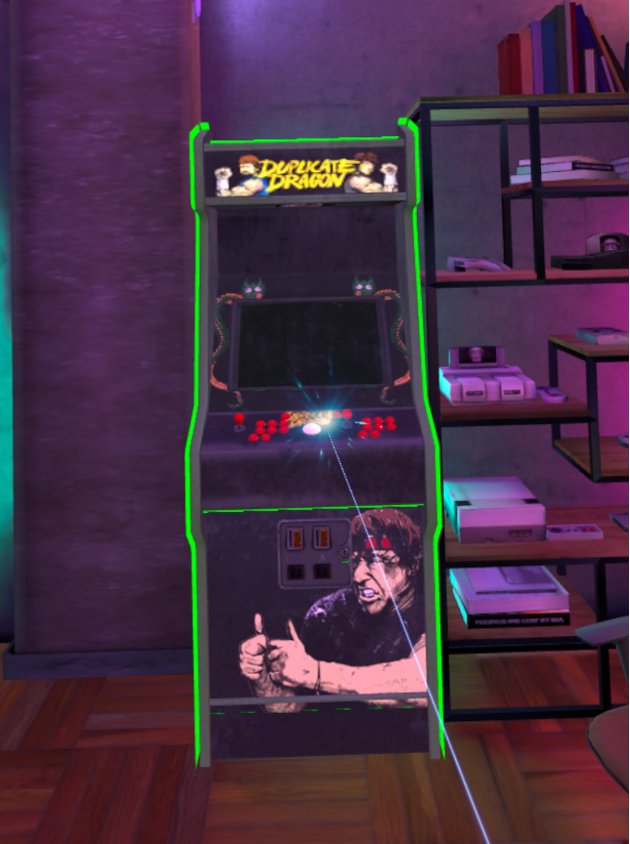
- Power up: In the cabinet’s menu, press the power button to turn it on.
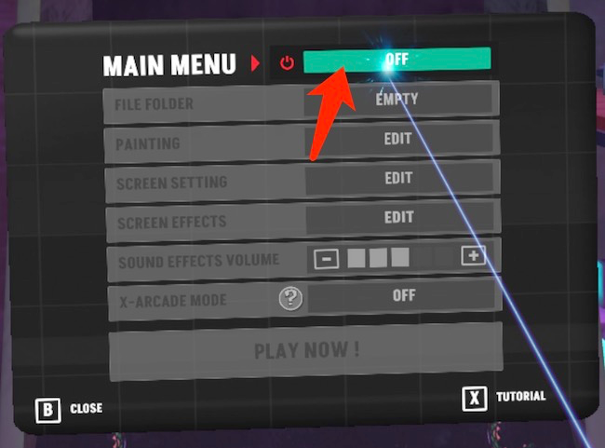
- Choose a game: Pick a ROM from your folder structure (see Section 4 for adding ROMs).
- Enable X‑Arcade mode: Press the X‑Arcade button on your Tankstick to signal the game you’re using real controls.
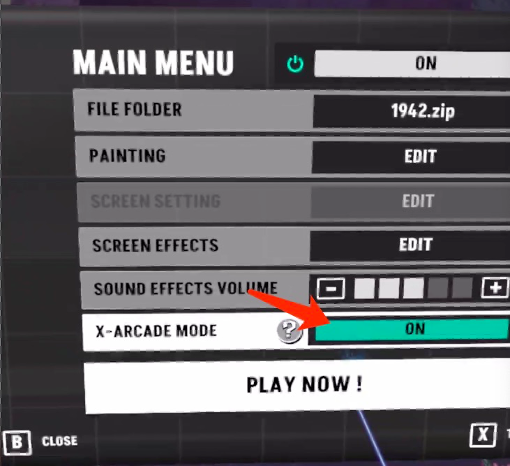
- Enter passthrough: Select PLAY to switch to passthrough and follow the on‑screen instructions to insert your Quest controllers into the VR holders.
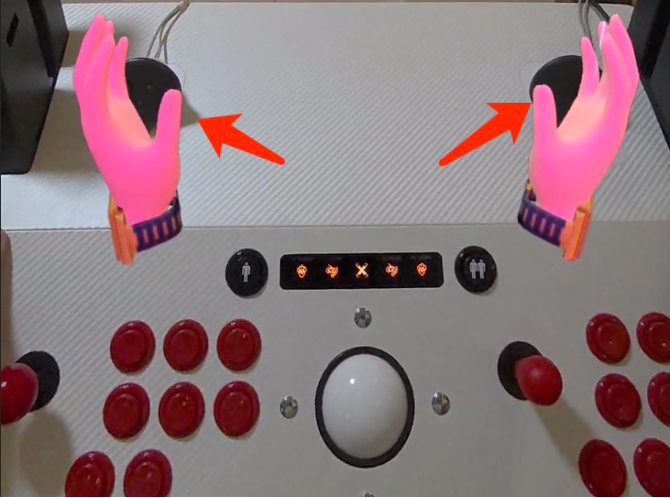
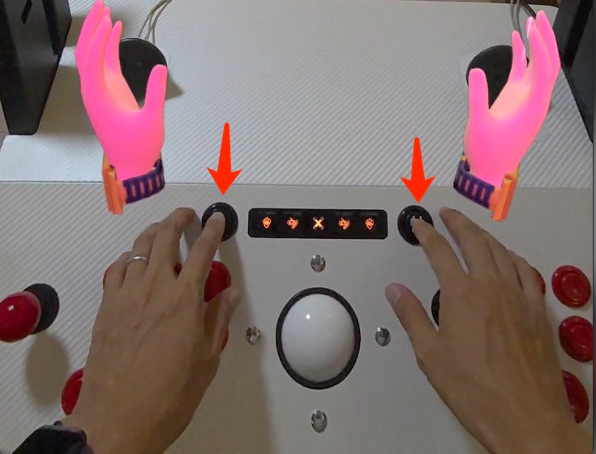
- Complete mapping: Press Player 1 Start + Player 2 Start simultaneously. When your palms are visible, the cabinet will respond to the arcade controls.
4. Add Games (ROMs)
Arcade Ranger does not include commercial game ROMs or emulator cores. You must supply your own legally owned files:
- Connect your Quest headset to a PC using a USB‑C cable and enable file transfer.
- Navigate to Android/data/com.Pumpkinvrar.Retroverse/files/UnrealGame/Retroverse/Retroverse/Saved/MyROMs/Core. Within this directory you’ll find subfolders for each system (e.g., mame, nes, ps). Copy your ROM files into the appropriate folder.
- Disconnect your headset and launch Arcade Ranger. The new games will appear in the cabinet’s selection menu.
- If you need help setting up emulators or locating compatible ROM versions, join the community on the Arcade Ranger Discord; the developers update features over time.
5. Navigate the Menu & Play
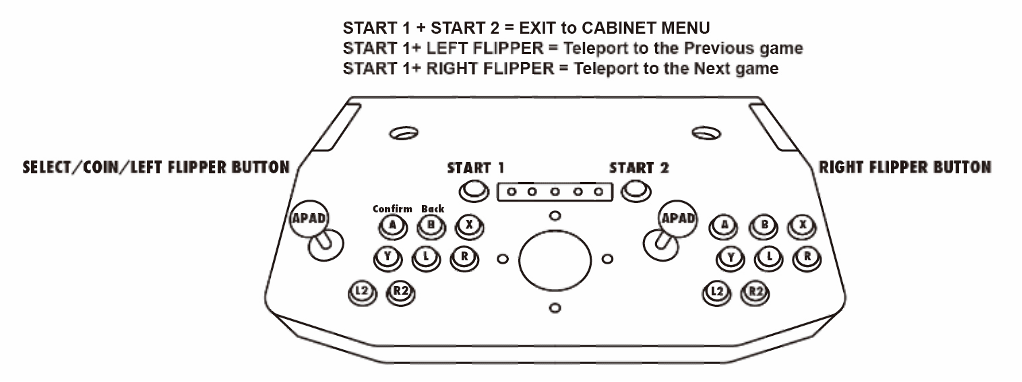
- Move through menus: Use the Player 1 joystick.
- Select/confirm: Press the top‑left button (A).
- Back out: Press the button to the right (B).
- Insert a coin: Use the left flipper button and press Player 1 Start to begin a game.
- Start playing: Highlight the PLAY button and press A. If you accidentally quit using the Quest controller’s B button, reenter the menu and start the game again.
6. Customization & Advanced Features
6.1 Customize Cabinet Overlays
Create your own cabinet artwork to make each machine truly yours.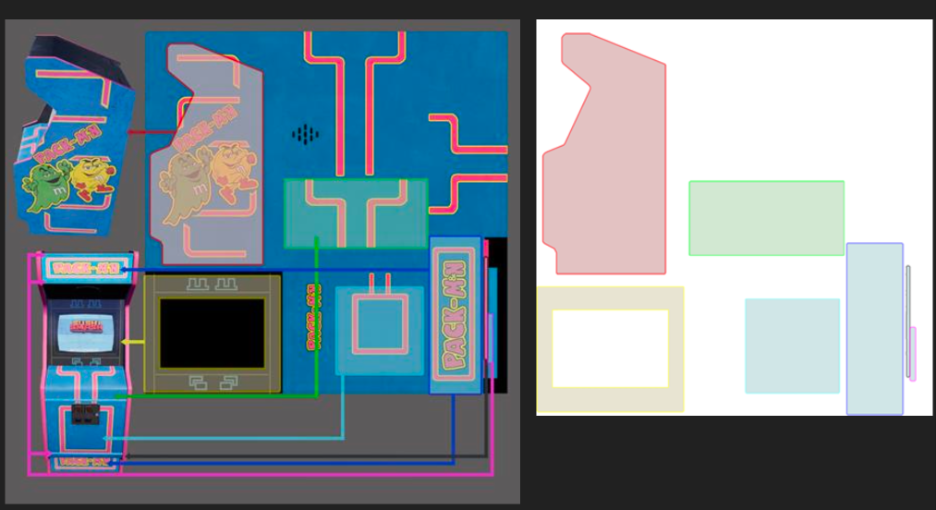
- Use the provided UV templates to align your design correctly. Download templates for classic cabinets from classic cabinets and Japanese cabinets from Japanese cabinets.
- Design a PNG image sized 2048×2048 pixels and save it as .png.
- Copy your custom overlays into the appropriate folder:
- Classic cabinets: Android/data/com.Pumpkinvrar.Retroverse/files/UnrealGame/Retroverse/Retroverse/Saved/Arcade
- Japanese cabinets: Android/data/com.Pumpkinvrar.Retroverse/files/UnrealGame/Retroverse/Retroverse/Saved/ArcadeJP
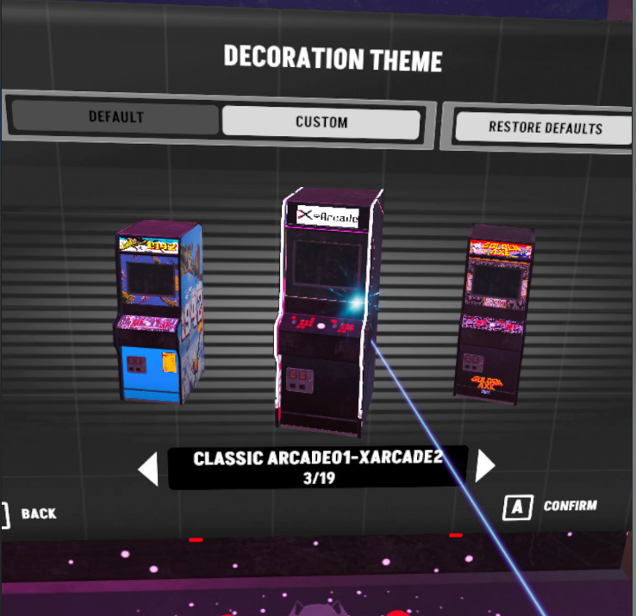
- Back in game, select a cabinet, open the PAINTING section and choose Custom to apply your design.
6.2 Add Music to the Jukeboximage
- Convert your songs to .wav format using a free online converter.
- Organize your songs into folders named after the album.
- Place those folders into Android/data/com.Pumpkinvrar.Retroverse/files/UnrealGame/Retroverse/Retroverse/Saved/Music. Create the Music directory if it doesn’t exist.
6.3 Add Custom Postersimage
- Create a square image sized 1024×1024 pixels.
- Copy it to Android/data/com.Pumpkinvrar.Retroverse/files/UnrealGame/Retroverse/Retroverse/Saved/Poster. Create the Poster directory if needed.
- Your poster will appear at the bottom of the in‑game poster list.
6.4 Teleport Between Cabinets
Avoid long walks across your virtual arcade by using the teleport shortcut:
- Press Player 1 Start + left flipper to teleport to the previous cabinet.
- Press Player 1 Start + right flipper to teleport to the next cabinet.
6.5 Customize Displays & Objects
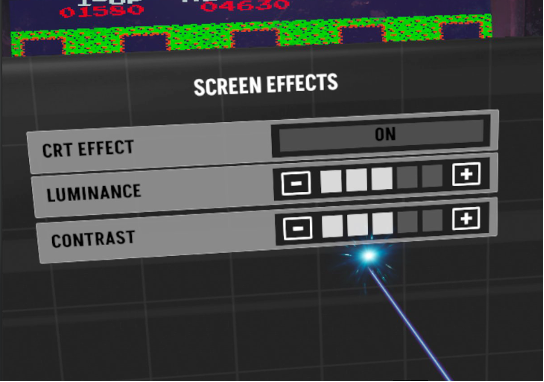
- CRT filter: Toggle between flat LCD screens and curved CRT‑style displays for a retro look.
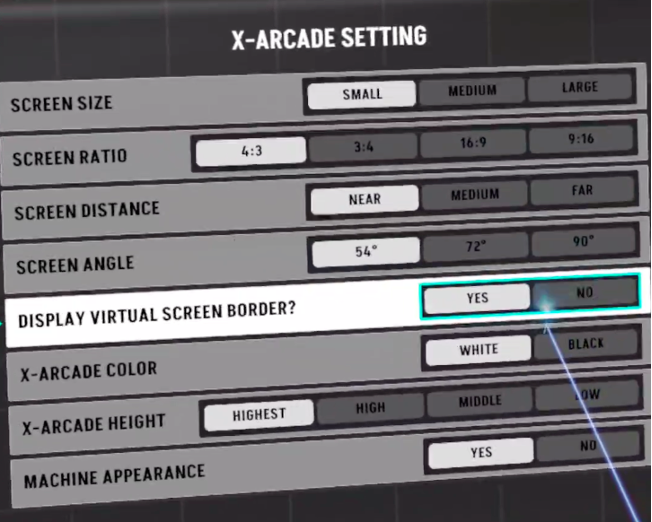
- Virtual Arcade2TV‑XR cabinet: Place a virtual version of the Tankstick in your arcade. It functions like a floating TV and offers numerous display options.
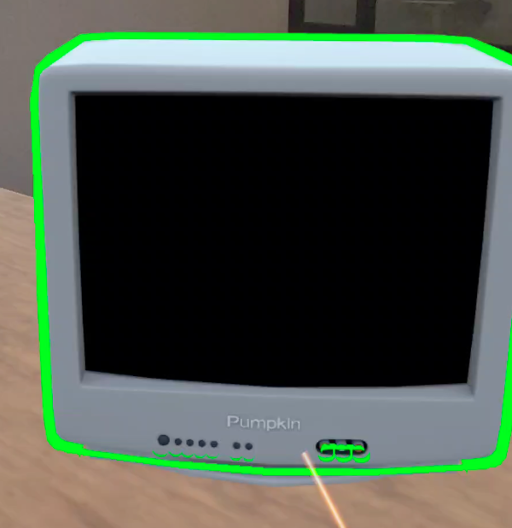
- CRT television: Recent updates allow you to place a classic CRT TV in your virtual space.
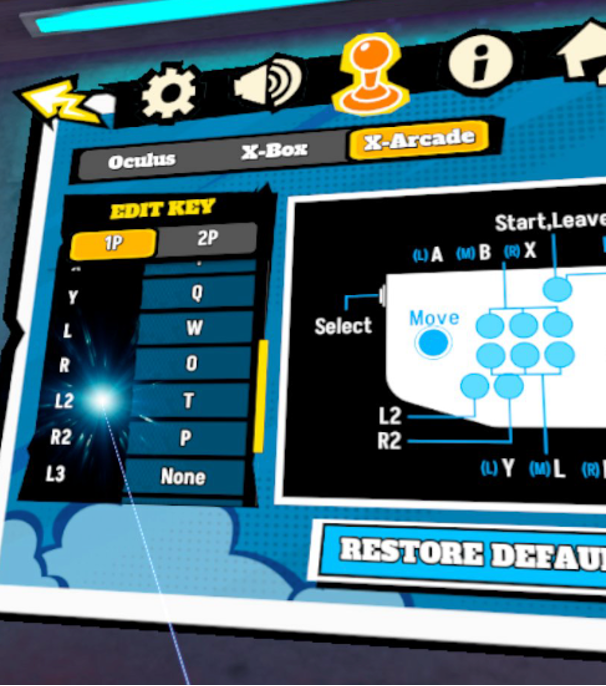
- Remap controls: All controller inputs are fully remappable via the in‑game settings menu to suit your preferences.
7. Game Modes & Leaderboards
7.1 Sandbox Mode
Sandbox lets you build and customize your arcade without limitations. Hang posters, adjust cabinet heights, add neon lights and interactive mini‑games like basketball hoops, archery targets, axe‑throwing boards, guns, swords and magic wands.
7.2 XR Mode (Mixed Reality)
In XR mode you scan your real room and place virtual machines, posters and signs into it. Note that XR mode is currently single‑player; multiplayer is only available in VR.
7.3 Multiplayer & Mini‑Game Leaderboards
- Sandbox multiplayer: Friends can join your arcade to explore and play mini‑games together. ROM‑based games run locally on each player’s headset due to licensing constraints, and posters/jukebox music are not shared.
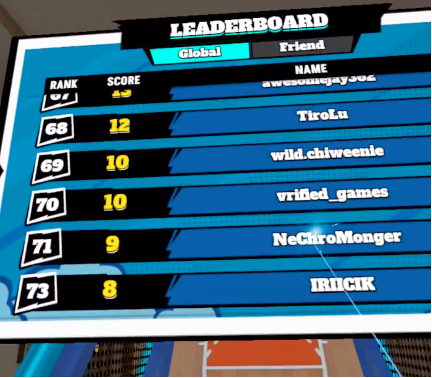
- Leaderboards: Basketball, archery, grabbing stick and throwing axe machines feature global leaderboards. The leaderboard can be found on the machine next to the start button.
8. Tips & Best Practices
- Adjust the Arcade2TV‑XR’s height and wheels to suit your play style. Standing works well for short bursts; sitting is great for long sessions.
- Keep your headset and controllers charged and clear your play area—some games require swinging or throwing motions.
- Use only ROMs you legally own and respect copyright laws.
- Join the Arcade Ranger Discord to stay up‑to‑date on new features and to share creations.
Recommended firmware/remapping tool: Start with the Arcade2TV-XR Web Configurator for controller remapping and supported firmware upgrades for the Arcade2TV-XR controller, Gen2 wireless dongle, and Haptics PCB. It runs in a browser on Mac and Windows PC. If the web app is unavailable, use the downloadable software fallback from the main software and firmware guide. Always choose the firmware for the correct component; Gen1 dongles are not firmware-upgradable.
9. Further Support
If you encounter issues or need advanced configuration such as firmware updates or key remapping, consult the Arcade2TV‑XR Software & Firmware Usage Guide. For cabinet mapping instructions, see the Mapping Arcade Ranger article. Watch our YouTube tutorial for hands‑on assistance.
By following these steps you’ll transform your living room into a personalized arcade. Have fun building, customizing and playing!
Source article: <https://support.xgaming.com/support/solutions/articles/12000105469-getting-started-with-arcade-ranger-step-by-step-guide-for-the-x-arcade-arcade2tv-xr>