ARCADE2TV-XR/Tankstick VR Software and Firmware Usage Guide
Recommended: Use the Arcade2TV-XR Web Configurator
We now recommend the Arcade2TV-XR Web Configurator for controller remapping and supported firmware upgrades for the Arcade2TV-XR controller, Gen2 wireless dongle, and Haptics PCB:
<https://xgameroom.com/arcade2tv-xr-configurator/>
You can also find this tool from the home page of shop.xgaming.com.
The web configurator runs directly in a supported browser on Mac or Windows PC, lets users select the desired firmware on the web page, and removes the normal need to download separate firmware files or Windows-only software.
If the web configurator is unavailable, or if support specifically asks you to use the local tool, you can still use the downloadable Arcade2TV-XR software and the manual firmware files listed in this article.
Important: Always choose the firmware for the correct component: Arcade2TV-XR controller, Gen2 wireless dongle, or Haptics PCB. Gen1 dongles are not firmware-upgradable.
The X-Arcade Arcade2TV-XR Configuration Tool, a Windows-based application, enables users to tailor the keys and actions of their Arcade2TV-XR. This segment guides you through the software's interface and usage.
Mac and Windows Users - Arcade2TV-XR Web Configurator
Mac and Windows PC users can now use the Arcade2TV-XR Web Configurator to perform supported firmware upgrades and controller remapping directly from the browser.
Open the Arcade2TV-XR Web Configurator here: <https://xgameroom.com/arcade2tv-xr-configurator/>
Recommended: Use the current Arcade2TV-XR Web Configurator first. It is cross-platform for Mac and Windows PC and supports the Arcade2TV-XR controller, Gen2 wireless dongle, and Haptics PCB firmware workflows.
If the web configurator is unavailable, use the downloadable software fallback or contact Xgaming Support for help.
Downloading and Installing the Software
- Download: Please download the latest software and firmware. (Software download link:V1.01.14)
- Installation: Follow the on-screen instructions in the installer to complete the software setup.
- Initialization: Launch the X-Arcade Arcade2TV-XR Configuration Tool. Upon connecting the Arcade2TV-XR, the software will display the driver mode and relevant UI.
- Customization: You can now begin customizing the key mappings across different modes for a personalized gaming experience.
Software Features and Functions:
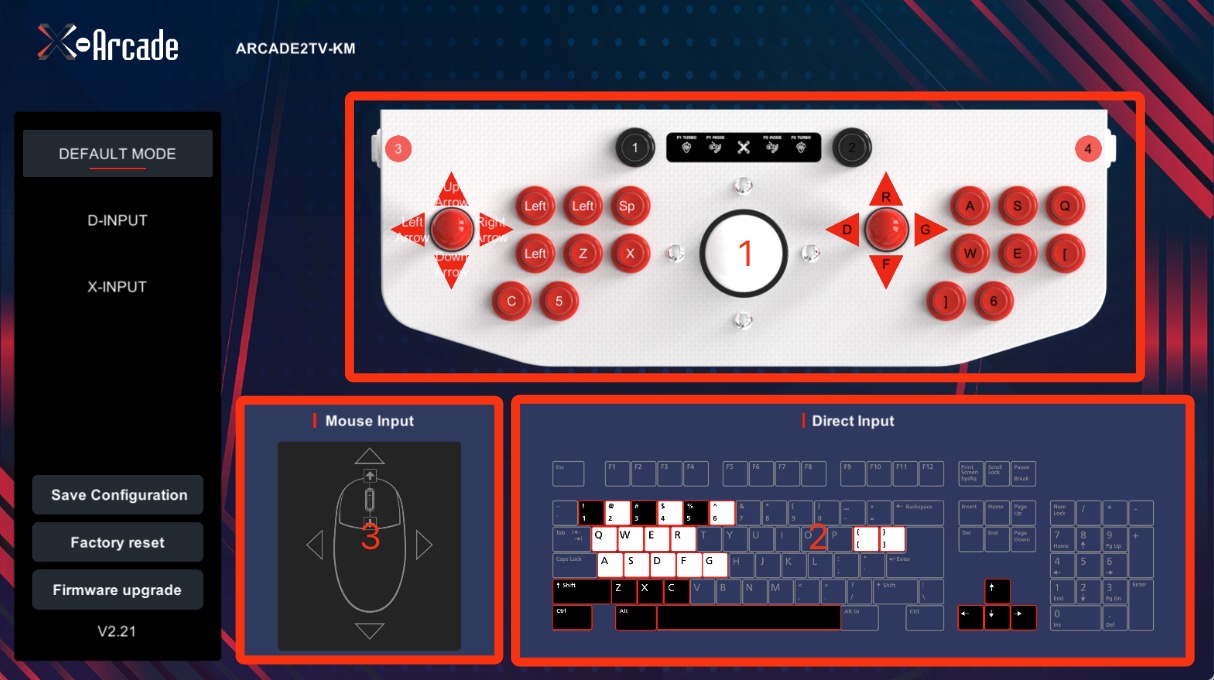
- Firmware Upgrade:Use this feature to update the Arcade2TV-XR's firmware.
- Factory Reset:Resets the Arcade2TV-XR to its original settings, erasing all custom mappings.
- Save Configuration:After remapping controls, use this to save your configurations.
- Product Name: Indicates the driver name of the Arcade2TV-XR.
- Current Mode: Displays the active driver mode of the Arcade2TV-XR.
- Firmware Version: Located in the bottom left corner, it shows the current firmware version of the Arcade2TV-XR.
Remap in Keyboard Mode
Steps:
- Input Key Selection: Select an INPUT key in section 1 for remapping.
- Assigning Keyboard/Mouse Key: Click on a keyboard key in section 2 or a Mouse key or movement direction in section 3 to assign it to the chosen INPUT. Repeat steps 1 and 2 to remap additional keys as needed.
- Save Configuration: Once remapping is complete, click 'Save Configuration' to store the new mappings in the firmware.
Remap in DINPUT Mode
Steps:
- Input Key Selection: In section 1, select the INPUT key you want to remap.
- Assigning Gamepad/Mouse Action: Click on a gamepad or mouse action in section 3 or 2 to assign it to your chosen INPUT key. Complete this step for each key remap. Repeat this process to remap additional keys as necessary.
- Saving Changes: After completing the remapping, click 'Save Configuration' to save your changes. Your new key mappings will be stored in the firmware.
Remap in Xinput Mode
Currently not available.
IMPORTANT: Dongle Version & Firmware Compatibility
Before upgrading firmware, confirm which wireless dongle you have.
This page primarily covers controller (base PCB) firmware. Dongle firmware should only be updated if you are using a Gen2 dongle.
Gen1 Dongle (Standard with Arcade2TV-XR Bundle)
- Comes included with all standard RK2TV-XR bundles
- Uses the documented Gen1-compatible controller branch (historically v2.22–v2.27; a support-provided v2.28 case is qualified below).
- ❗ Not firmware upgradable
- ❗ Do NOT install any v3.xx firmware intended for Gen2 systems
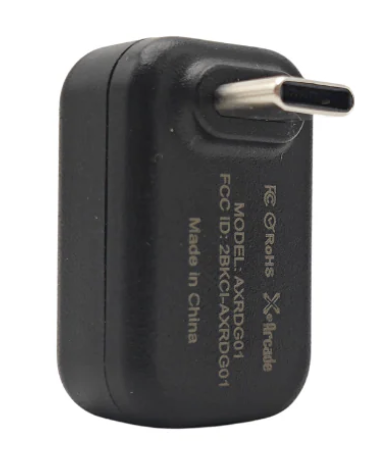
Attempting to flash Gen2 firmware onto a Gen1 dongle will permanently disable the dongle.
Gen2 Dongle (Upgrade / Included with Haptics Kit)
- Included with the X-Force Haptics Kit
- Also sold separately as an upgrade
- Works with controller firmware: v3.62 and v3.64
- ✅ Firmware upgradable (current required version: v3.43v2 for v3.64 systems)
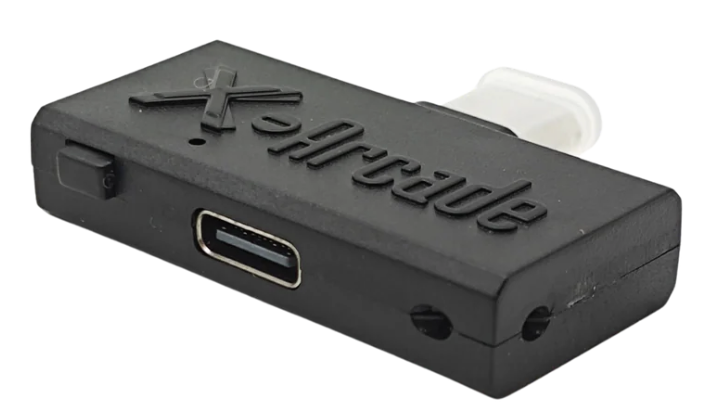
*\Quick Rule**
- If your system shipped with the standard Arcade2TV-XR bundle → you have Gen1
- If you purchased the Haptics Kit or a Gen2 upgrade → you have Gen2
When unsure, contact support before updating.
Firmware Downloads for Arcade2TV-XR/Tankstick VR
At X-Arcade, we continuously gather feedback and work to improve both our hardware and user experience. As part of our commitment to supporting our customers, we release firmware updates to address bugs and introduce enhancements.
Available Firmware Versions:
v2.22 (Stock Version)(GEN1 DONGLE ONLY)
• Overview: This is the default firmware version for the Arcade2TV-XR, offering standard functionality.
• Use: Ideal for general usage with no special requirements.
• Download: Download v2.22 Firmware
v2.23(1/2025)- FOR PINBALL USE(GEN1 DONGLE ONLY)
• Overview: This version is optimized for playing Pinball FX games with enhanced compatibility.
• Use: Best for users playing Pinball FX or Pinball FX2 VR on their VR systems.
• More Details: Using X-Arcade Tanksticks and Arcade2TV-XR with Meta Headsets for Pinball FX and Pinball FX2 VR
• Download: Download v2.23 Firmware
v2.25(2/2025)(GEN1 DONGLE ONLY)
• Overview: The latest firmware includes a new XINPUT feature that allows you to trigger the XBOX/GUIDE/MENU button by holding down the select button for 3 seconds. This feature is especially useful for Steam Deck or gaming PC setups to access the menu during gameplay.
• Use: Recommended for users who want enhanced control options, particularly on gaming PCs or Steam Deck setups.
• Download: Download v2.25 Firmware
v2.23\_3 (7/2025)- FOR PINBALL USE(GEN1 DONGLE ONLY)
• Overview: This firmware introduces a specialized XINPUT mode tailored for Pinball FX and other pinball games across PC and major consoles. It features a dedicated single-player XINPUT mapping optimized for use with Brook’s Wingman adapters (XB2/FGC/XB3) via direct USB connection—supporting consoles such as Nintendo Switch, PS4/5, and Xbox Series X/S. This eliminates the need for using a DB9 or 2-in-1 adapter.
• Use: Recommended for users who primarily play pinball games on consoles or PC and want plug-and-play XINPUT support with correct button mapping and no additional adapter chains. Ideal for turning the Arcade2TV-XR/ Tankstick VR into a dedicated single-player gamepad controller.
• Download: Download v2.23\_3 Firmware
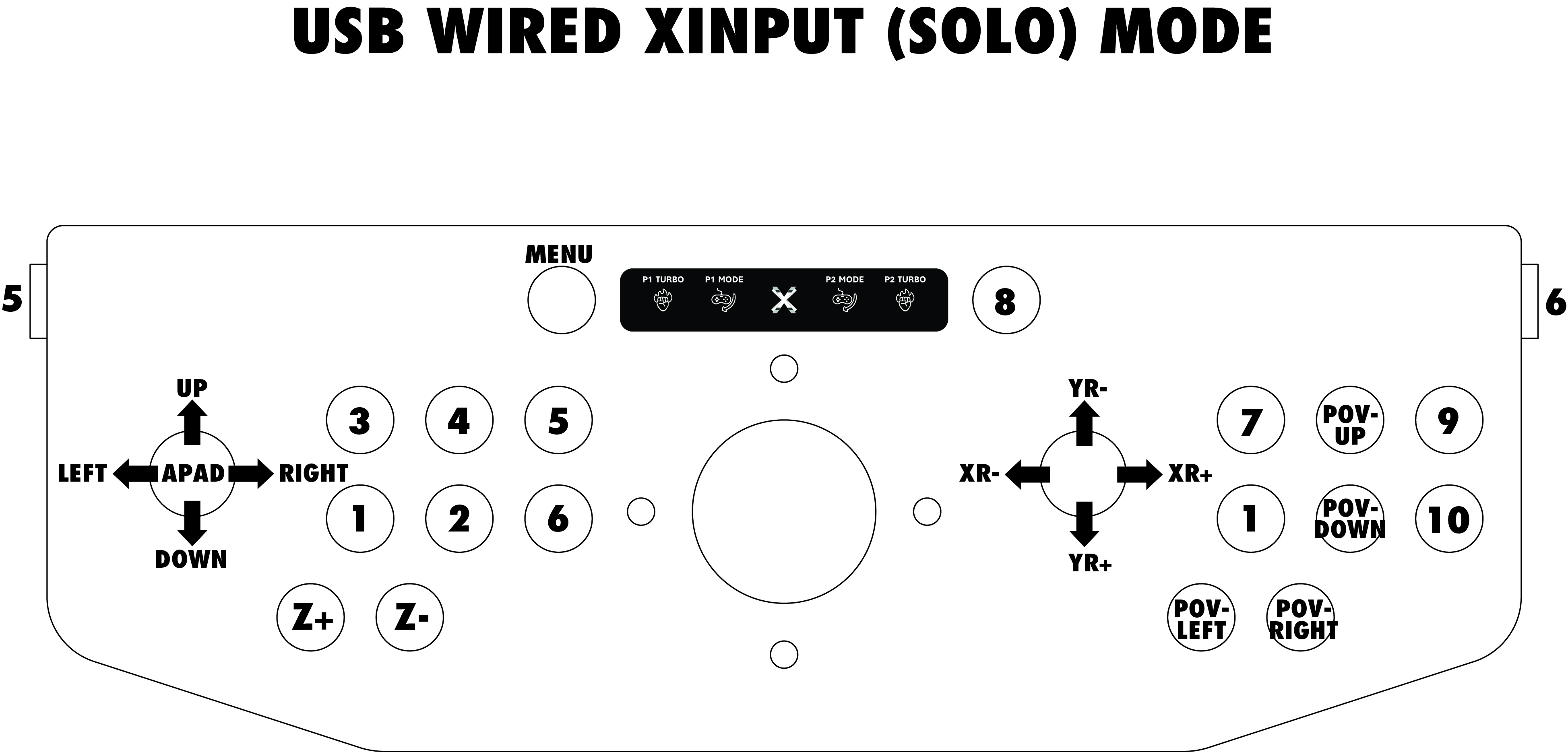
v2.27 (10/2025) – THIS ADDS A PINBALL & SOLO MODE (GEN1 DONGLE ONLY)
*• Overview: This firmware introduces a new “Pinball/Solo Mode” (blink purple) which allows you to play pinball titles and standard solo-player arcade games without needing to switch between separate firmware versions. It supports a single-player XINPUT mapping that works directly with any Brook adapter—eliminating the need for the 2-in-1 adapter. This makes it a more cost-effective option for users who don’t require a two-player setup.*
• Use: Recommended for users who play a mix of pinball games and solo-player arcade titles across platforms and want a single firmware that covers both. Ideal if you’re using the X‑Arcade Arcade2TV-XR / Tankstick VR as a dedicated gamepad controller for pinball and arcade experiences—directly through a Brook adapter, no extra adapter chain needed.
• Important Notice: This firmware is only compatible with the V1 bluetooth dongle*. The new dongle will not work with this version. We will release a separate firmware when the new dongle is available.*
• Download: Download v2.27 Firmware
• Layout & Mode Indicator: LED will blink purple when in Pinball/Solo Mode.
v3.62 (12/2025) – Historical Gen2 controller branch (with or without Haptics Kit)
- Overview: v3.62 is an earlier Gen2-compatible controller firmware, not the latest release or the only wireless-compatible version.
- Use: Keep the controller and Gen2 dongle on a documented matching branch; see the v3.64 stability set below for disconnections.
- Important: Gen2 use requires a compatible controller branch, not v3.62 specifically. For original Arcade2TV-XR / Tankstick VR with Gen2, v3.62 is a historical supported branch, not the only working wireless firmware. For the documented disconnection fix, use controller v3.64 with Gen2 dongle v3.43v2 and Haptics PCB v1.8 if installed. A customer who still froze on v3.62 confirmed operation after the matched v3.64/v3.43v2 update. Confirm dongle generation and follow the current component-specific guide; never load a controller file into a dongle or Haptics PCB.
- More Details / Setup Guide: Gen2 Wireless Upgrade for Arcade2TV-XR (Tankstick VR)
- Download: Download v3.62 Firmware
• Mode Switching: To switch modes, press and hold the P1 MODE button on the touch panel for about 5 seconds, then the unit will cycle between modes.
• Upgrade Reminder:
- Make sure the unit is connected via USB and powered throughout the process.
- *Do not unplug the unit during firmware upgrade — this may brick the unit.*
- After starting the upgrade, wait until the unit fully reboots. A reboot indicates the upgrade succeeded—waiting about 5 minutes is best.
- If the unit fails to reboot or powers off mid-update, the firmware may not install properly and you risk needing recovery.
v3.64 (1/2026) – CRITICAL Stability Update for Gen2 Dongle Users (Works With or Without Haptics Kit Installed)
Overview: v3.64 is a critical Arcade2TV-XR / Tankstick VR base PCB firmware update specifically for Gen2 wireless dongle users. It resolves a stability issue where some units may disconnect after a few minutes of gameplay. To address this, we updated the internal USB communication mechanism to prevent disconnections likely caused by differences in end devices (PCs, Raspberry Pi systems, or VR headsets).
Use: This firmware is strongly recommended for any user experiencing random disconnections or dropouts when using the Gen2 wireless dongle. It works both with and without the X-Force Haptics Kit installed.
Important: For the fix to be fully effective, this firmware must be combined with the required companion firmware versions listed below. All components must be updated together as a set to ensure full system stability.
Required Firmware Versions (Update as a Set):
- Arcade2TV-XR Controller (Base PCB): v3.64
- Gen2 Wireless Dongle: v3.43v2
- Haptics PCB (only if using the Haptics Kit): v1.8
Note for Users Without the Haptics Kit: If you do not have the Haptics Kit installed, the Gen2 dongle will still function with controller firmware v3.62. However, if you are experiencing disconnections, upgrading the controller to v3.64 (and the Gen2 dongle to v3.43v2) is required for maximum stability.
More Details / Setup Guide: Gen2 Wireless Upgrade for Arcade2TV-XR (Tankstick VR)
Haptics PCB Firmware Upgrade Guide
Download: Download v3.64 Firmware
How to Upgrade Firmware:
IMPORTANT NOTICE: Make sure the unit is set to Keyboard or DINPUT mode before upgrading the firmware, as it cannot be updated while in XINPUT mode.
1. Download the Firmware File: Download the firmware file in .BIN format (select the version you need).
2. Connect Your Device: Plug your Arcade2TV-XR or Tankstick VR unit into your PC.
3. Open the Software: Launch the Arcade2TV-XR Configuration Tool.
4. Upgrade the Firmware:
• Press the Firmware Upgrade button at the bottom left corner of the software window.
• Select the firmware file you just downloaded and click Open.
5. Wait for the Upgrade:
• The software will begin flashing the firmware onto your device. Do not disconnect the device during the upgrade process.
• The unit will reboot and reconnect to your PC automatically.
• Once the software detects the upgraded device, the firmware upgrade is complete and your device is ready for use.
Note: Disconnecting the device during the firmware upgrade can cause the device to become unresponsive or “bricked.”
How to Roll Back or Force Firmware Upgrade:
For an identified original-XR controller and a support-approved matching firmware branch, use the supported force-recovery entry below. The historical v2.22 rollback is not appropriate for every dongle generation or installed kit; confirm the target and compatible file first.
1. Press and Hold the bottom-left button of P1 while connecting the controller’s USB to your PC.
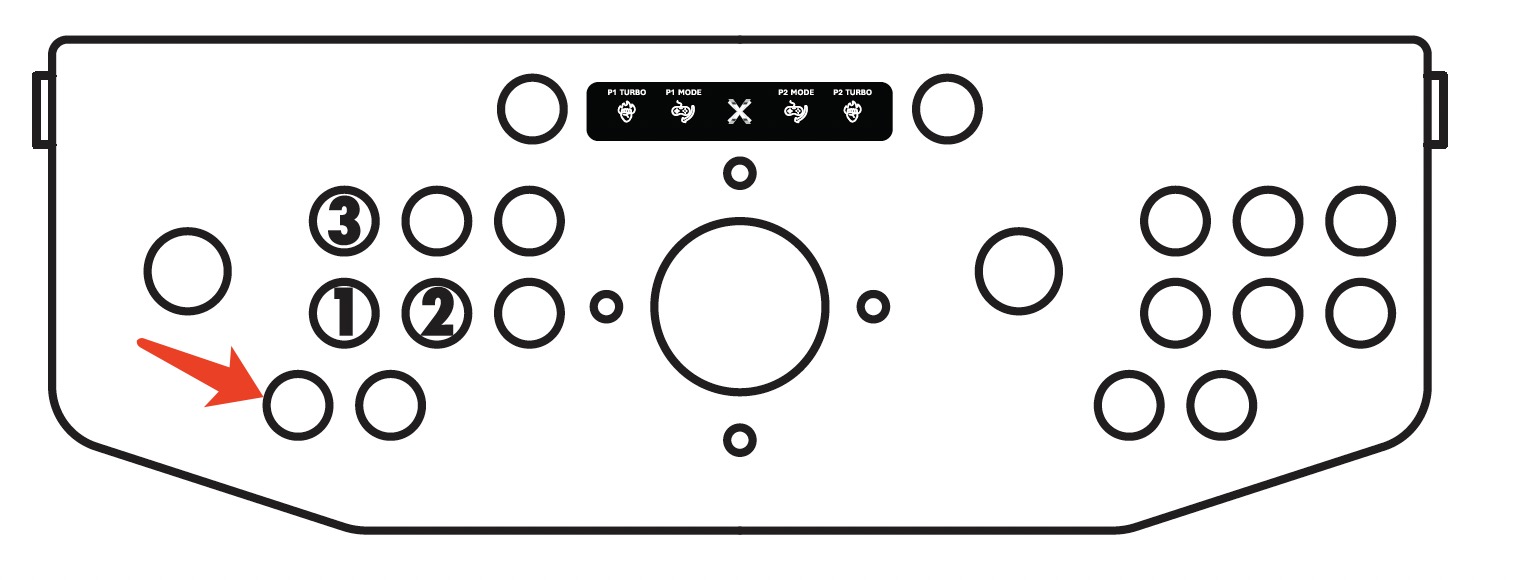
2. Use the supported firmware tool only after it detects the intended controller, selecting the controller file approved for that hardware and dongle branch. Never substitute a dongle or Haptics PCB file.
Force recovery is not guaranteed. If the tool still cannot detect the controller after the supported checks, stop repeating flashes and contact support with the exact target, attempted file/version and observed error.
Source article: <https://support.xgaming.com/support/solutions/articles/12000101199-arcade2tv-xr-tankstick-vr-software-and-firmware-usage-guide>
Wrong-component file and updater detection
Scope: original XR, not XR MAX. Working trackball input does not prove the controller firmware updater has detected the correct component. For the downloadable Windows tool, use the documented Keyboard/D-Input update mode and support-directed administrator launch; XInput is not the local updater mode.
One customer accidentally selected a Haptics PCB file for the controller, then recovered the controller through the web configurator using its correct controller firmware. Do not repeat that mismatch or flash an unidentified board. Record which physical component and file were selected; identify the target and follow its supported recovery workflow at https://xgameroom.com/arcade2tv-xr-configurator/. If target identification or reconnection fails, stop and contact support. Recovery in one case is not a guarantee for another device.
After flashing, confirm successful completion, reconnect and read the intended component/version, then test input. A displayed version, reboot, working cursor or flipper click alone does not prove wireless gameplay is restored. Re-pair the identified Gen2 dongle with USB-B disconnected and the controller on USB-C wall power, then retest the original failing game.
Original XR updater crash during the v2.27 update
Scope: original Arcade2TV-XR / Tankstick VR and the compatible v2.27 controller branch, not XR MAX, Tri-Mode firmware or Gen2-only files. A customer reported an updater crash while the bootloader was loading, followed by no control input and no application connection even though Windows Device Manager still listed the device. After support-directed force recovery and reinstalling the matching v2.27 controller firmware with the updated original-XR tool, the customer explicitly confirmed that the controller worked again.
Windows enumeration alone does not establish that the updater selected the right component, that a flash completed, or that hardware damage is impossible. Record the exact component, dongle generation, file/version, displayed device and error before repeating a flash. Use this guide's supported recovery entry for the identified original-XR controller and a firmware file compatible with the actual dongle; do not substitute v2.27 for a Gen2/Haptics system merely because this case recovered with it.
For an application detection failure, use the correct data cable directly to a rear computer USB port and the support-directed updater launch; optional hubs and other controller devices can be removed for comparison. Follow the updater until it reports completion, reconnect normally and read the intended version, then test the previously missing joystick/buttons and the original failing game. If detection still fails, send support the exact final message and Device Manager evidence rather than repeatedly flashing unidentified files. The successful case did not isolate the software-crash cause or prove that any single optional host check was responsible.
Force recovery still fails: preserve failed checks before hardware escalation
Scope: original Arcade2TV-XR / Tankstick VR, not XR MAX or another Tankstick. In a reviewed case, an attempted firmware update was followed by flashing control-panel lights and no controller detection in the local application. Repeated force-recovery attempts did not restore detection. Support then suggested extra power and a mode change; the customer reported those also failed. Flashing lights alone did not establish insufficient power, a lighting-effect setting or a particular firmware/PCB defect.
Support selected a replacement controller PCB, and the customer later explicitly confirmed that it was installed and the controller worked again. This is a confirmed repair path in that case, not evidence that every unrecognized controller needs a PCB or that the firmware update caused physical damage. The exact PCB revision and detailed failed component were not established.
Record the actual connection, installed/attempted firmware, final detection message and recovery checks already tried. Give support the board identification and symptom video before it selects a matching replacement; do not order or swap an unidentified board from this example. Disconnect wall power and all external cables before support-directed internal work. After an approved replacement, verify normal detection and the originally failing controls, then test the intended connection/game separately. Report remaining failures rather than treating receipt of a board as a successful repair. Case-specific compensation, shipment estimates and return arrangements are not general policy.
Dark lights after an update, but the touch panel still beeps
Scope: original Arcade2TV-XR / Tankstick VR, not XR MAX. In one reviewed case, the controller was no longer detected normally after an update to v3.64, the controls were reported unresponsive and decorative lights were dark, but pressing the touch controls still produced a beep. The separate Haptics Kit and spinners had not yet been installed. A previous rollback attempt had failed.
The customer subsequently confirmed that a support-directed Factory Reset followed by holding the X-logo and P1 TURBO together restored the lights. They could then cycle input modes and reported joystick/buttons responding again. This confirms that combined reset/lighting sequence in that setup, not that a wrong-component file was actually installed or that a new force flash was required. Dark decorative lights alone did not establish a dead board.
- Record whether the panel responds or beeps, the actual firmware attempted and whether the updater detects the intended controller. Do not repeat an unidentified firmware flash just to turn lights on.
- If the supported original-XR tool can communicate with the controller and support directs a Factory Reset, save custom mappings first because reset erases them. Use the software's Factory Reset for the identified controller, then use the documented X-logo + P1 TURBO lighting control if lights remain off.
- Recheck mode selection and each joystick/button outside the game. Verify the intended controller version and connection separately; a restored light is not a complete gameplay test.
- If detection or controls still fail, stop and report the exact result to support. Do not apply XR MAX shortcuts or an unconditional v2.xx rollback to a Gen2 system.
For a planned Gen2/Haptics installation, read the actual component versions and follow the matched guide: controller v3.64, Gen2 dongle v3.43v2 and Haptics PCB v1.8 when installed. The case did not confirm subsequent kit installation or wireless gameplay. An older suggestion to start on v3.62 is not a requirement to downgrade an already working matched v3.64 setup.
Gen1 controller recovery: enumeration and disconnections are separate tests
Scope: original Arcade2TV-XR with an identified Gen1 dongle, not a Gen2/Haptics matched system, XR MAX or Tri-Mode PCB. In a reviewed case, the controller had been moved to v3.64 despite its Gen1 wireless setup. Support provided a Gen1-compatible controller build identified as v2.28 and clarified that holding the documented P1 button while connecting enters bootloader mode; it is not the software's Factory Reset.
The customer first reported restoring normal controller registration with v2.27, but the controller still disconnected after about three minutes on multiple computers. They then explicitly reported that applying the support-provided v2.28 controller build fixed that disconnecting symptom. This confirms a scoped controller result, not a universal v2.27 defect, the current latest firmware, or permission to downgrade another setup. The Gen1 dongle still did not light or work, and its later Gen2 replacement had no reported received-and-tested outcome. The original launch-button complaint also had no confirmed repair.
Identify the controller and dongle generation before selecting firmware. If enumeration returns but drops recur, record the actual version, time to failure and direct-host comparisons instead of counting initial registration as full recovery. Ask support for the currently supported controller file for that exact Gen1 system; do not copy a private attachment, flash a controller file onto a dongle or apply this historical build to Gen2. Continue only when the supported tool detects the intended component, let the update finish, reconnect normally and read its version. Test beyond the previous failure interval and test buttons and intended wireless gameplay separately.
If an authorized Gen2 replacement is selected, migrate using the current Gen2 matched-component guide rather than assuming the Gen1 controller build will pair with it. Gen1 itself is not firmware-upgradable. A beep, Windows connection sound or one working component does not establish that every component is healthy; unresolved detection or input failures need the exact failed checks reviewed by support.