Important: Using X-Arcade with Star Wars Pinball VR & Pinball VR Classics (Quest)
Overview
When using Star Wars Pinball VR or Pinball VR Classics with an X-Arcade Arcade2TV-XR controller (Gen 2 wireless dongle and/or Haptics Kit), there is an important input behavior to be aware of.
Unlike Pinball FX VR, these two games do not display an X-Arcade welcome message and do not switch input priority after launch. Input is locked to the first controller used when the game starts.
If the game is launched using Quest controllers, the X-Arcade joystick will be locked out for that session.
What This Means
- ## Star Wars Pinball VR and Pinball VR Classics bind input at game launch
- The first input device used becomes the active controller
- If Quest controllers are used first, joystick input will not work
- Switching controllers mid-session is not supported
- Restarting the game is required to regain joystick control
Required Steps to Use X-Arcade Successfully
Follow these steps every time you launch either game:
- Power on and connect your X-Arcade controller
- Ensure the Gen 2 dongle is connected and paired
- Confirm the Gen2 dongle is in the correct VR pinball mode (flashing purple)
- Do NOT press any buttons on the Quest controllers
- No menu navigation
- No confirmations
- No table selection
- Use the X-Arcade joystick immediately when the game launches
- Navigate menus and select tables using the joystick
- Continue using the joystick for the entire session
Once launched correctly, joystick input will remain active.
Star Wars Pinball VR and Pinball VR Classics – Arcade2TV-XR Control Mapping (Pinball Solo Mode)
When using the Arcade2TV-XR controller with Star Wars Pinball VR and Pinball VR Classics, controls are mapped as follows:
1. Movement and View (Star Wars Pinball VR only)
→ Controls character movement**
→ Controls character view / camera**
- **Player 1 joystick (left stick)
- **Player 2 joystick (right stick)
2. Button Mapping
→ Map directly and 1:1 to the in-game ABXY inputs**
→ Used to navigate through the environment and move toward the TV inside the game world (**Star Wars Pinball VR only).
- **ABXY buttons
- **Left and Right joysticks
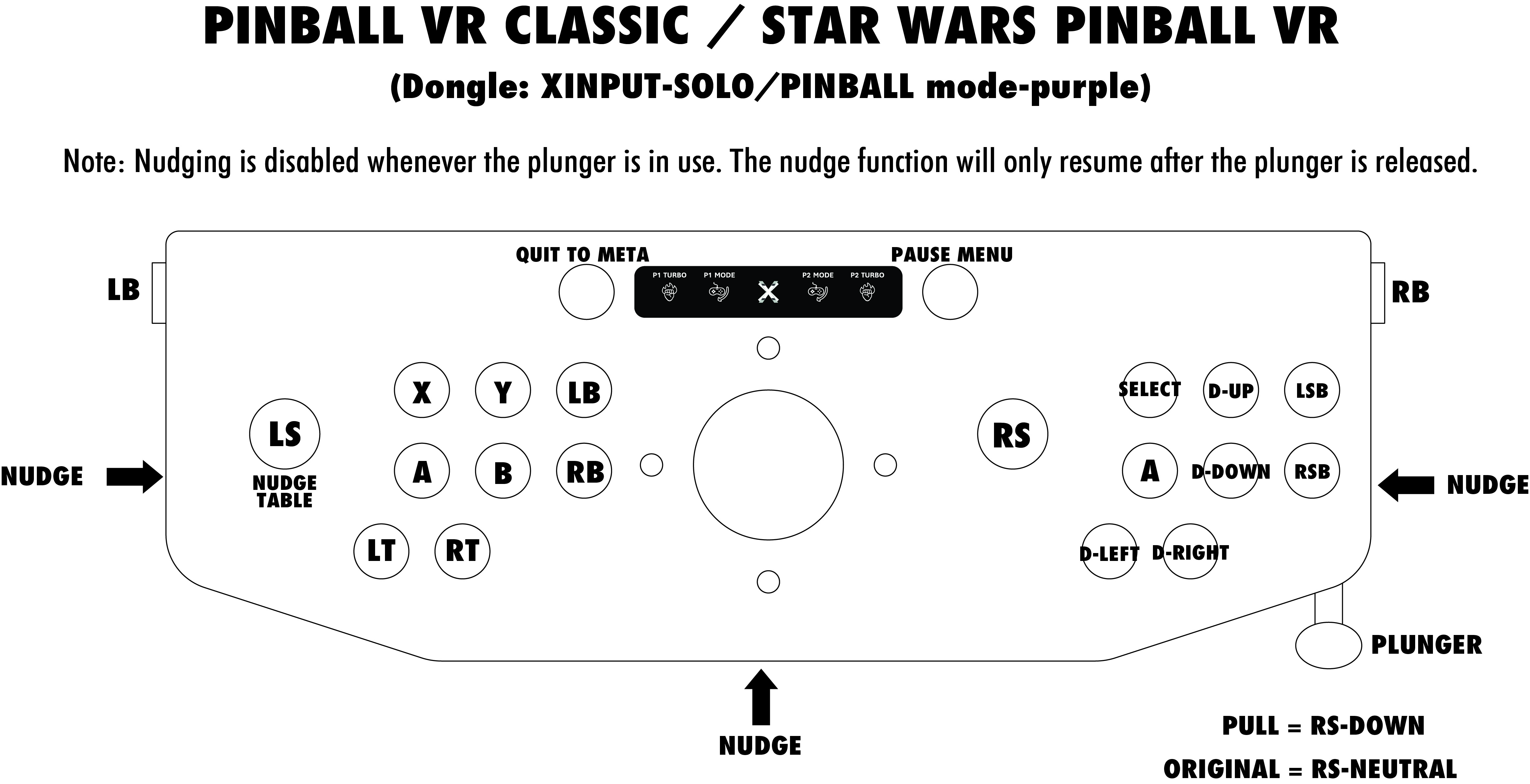
3. Flipper Configuration (Required)
To ensure flippers work correctly:
- Open the Options menu in Star Wars Pinball VR
- Locate Flipper Controls
- Change the flipper input to use:
- LB / RB for flipper control
This aligns flipper input correctly with the Arcade2TV-XR pinball layout.
Important Notes
- This behavior does not apply to Pinball FX VR
- Input is locked to the first controller used at launch
- Restarting the game is required if Quest controllers are used first
*If the Joystick Does Not Respond*
If the joystick does not work in-game:
- Exit the game completely
- Relaunch the game
- This time, use only the X-Arcade joystick from the start****
*Why This Happens*
Star Wars Pinball VR and Pinball VR Classics currently:
- Do not show an X-Arcade detection message
- Do not allow mid-session input switching
- Lock input to the first device used at launch
This is expected behavior based on how these titles handle controller input.
*Related Notes*
- This behavior does not apply to Pinball FX VR
- Using Quest controllers after launch will override joystick input
- Haptics functionality is unaffected as long as joystick input is active
*Summary*
✔ Power on X-Arcade first ✔ Launch the game ✔ Use the joystick immediately ❌ Do not use Quest controllers at launch
Following these steps will ensure smooth, reliable gameplay with no input issues.
Source article: <https://support.xgaming.com/support/solutions/articles/12000107466-important-using-x-arcade-with-star-wars-pinball-vr-pinball-vr-classics-quest->