Gen2 Dongle: Star Wars Pinball VR – Flipper Buttons Not Working (Meta Quest)
Scope: original Arcade2TV-XR / Tankstick VR with an identified Gen2 dongle on Meta Quest, not XR MAX. When the front LT/RT buttons operate the flippers but the side flipper buttons do not, first check this game's controller mapping.
In one reviewed setup, changing LT/RT to LB/RB restored the side flippers and the customer confirmed success. This supports the setting-only branch, not a guarantee for every failure. Identify the controller/dongle versions and use the documented Pinball/XInput mode before the test.
Cause
By default, Star Wars Pinball VR assigns flippers to LT / RT, which do not map to the physical side flipper buttons on the Arcade2TV-XR.
In addition, the LT / RT options will only appear in the TV screen control menu if you are actively navigating the game using the Arcade2TV-XR controller.
Solution (Required In-Game Setting Change)
⚠️ Important:
You must use the Arcade2TV-XR controller to walk and navigate inside the game before changing this setting.
Controller navigation requirements
Use the following controls on the Arcade2TV-XR:
- Left joystick – Move / walk
- Right joystick – Look / rotate view
- ABXY buttons – Menu interaction and selection
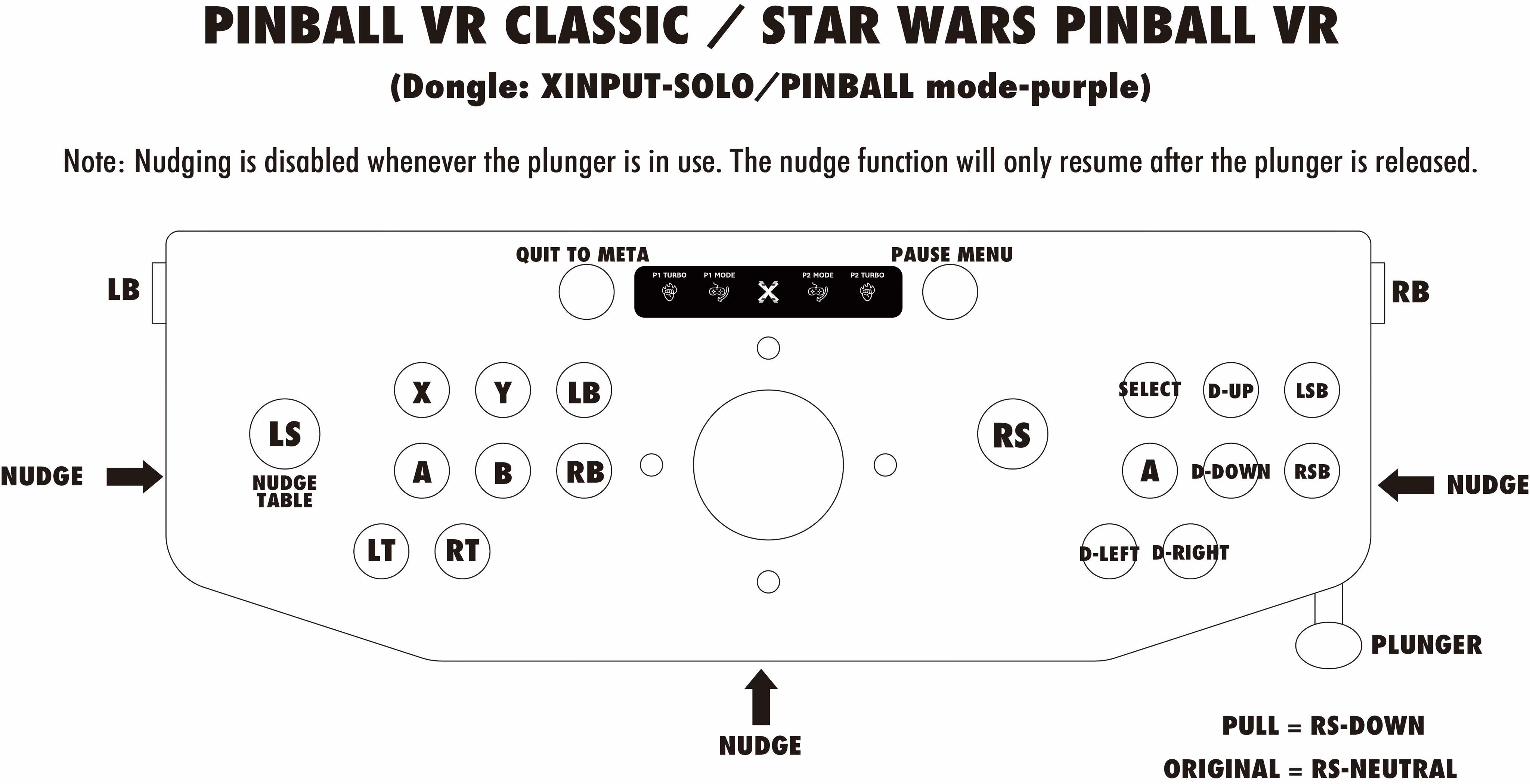
This ensures the correct controller profile is active and allows LT / RT to appear in the TV screen options.
Steps
- Launch Star Wars Pinball VR on your Meta Quest.
- Using the Arcade2TV-XR controller (not Quest controllers):
- Walk up to the TV screen inside the game environment.
- Open Options.
- Go to Control Customization.
- Change the flipper controls from:
- LT / RT
- → LB / RB
- Confirm and exit the menu.
Result
Once this change is applied:
- Test the physical side flipper buttons on the same table. If they work, a firmware change is not needed merely to change this setting.
- If this mapping was already tried and failed, do not repeat it as a guaranteed fix. Record exact controller, Gen2 and Haptics versions, mode and failed tests for support. Other reviewed setups required component-specific recovery; a title-switch issue may require fully closing and reopening the affected game.
- Test physical nudge and plunger separately; working side flippers do not prove every accessory function works.
Notes
- This setting is specific to Star Wars Pinball VR.
- Other pinball titles (such as Pinball FX VR) do not require this adjustment.
- The selected control layout is saved by the game and will persist for future sessions.
Source article: <https://support.xgaming.com/support/solutions/articles/12000107271-gen2-dongle-star-wars-pinball-vr-flipper-buttons-not-working-meta-quest->