How to Use Arcade2TV-XR with Pinball FX VR
Thanks to a partnership with Zen Studios, Pinball FX VR now supports native X-Arcade integration—no firmware updates or setup required.
✅Step-by-Step Setup:
- Power on your Arcade2TV-XR using the provided USB-C cable and power adapter.
• ⚠️ Do not connect the unit to your PC—this will activate USB mode. For VR use, it needs to stay in wireless mode.
- Insert the wireless dongle into your Meta Quest headset’s USB-C port.
- Verify the connection by rolling the trackball—if you see a mouse cursor moving inside the headset, you’re good to go.
- Launch Pinball FX VR (make sure the dongle is connected before launching the game to activate X-Arcade mode).
- In X-Arcade mode, your physical Arcade2TV-XR will be mapped to the virtual pinball cabinet, delivering a truly immersive experience.
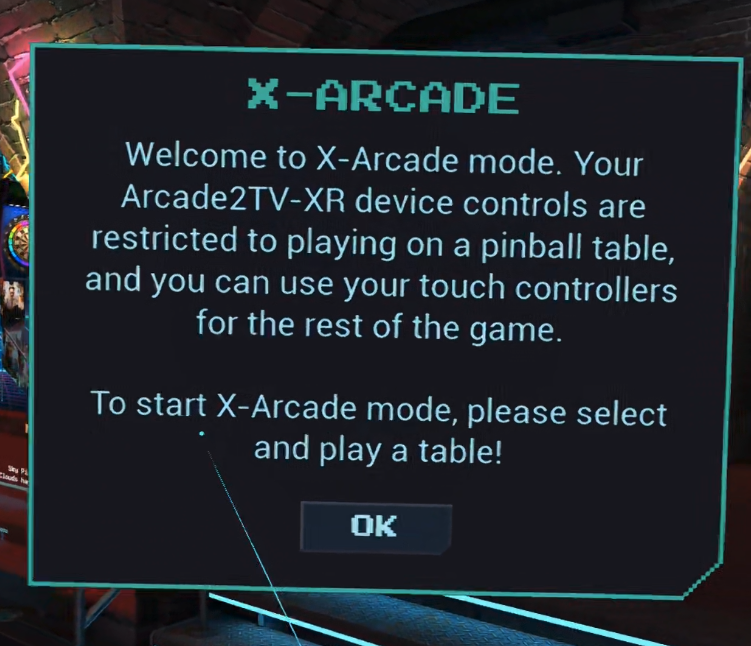
How to Map Your Virtual Table to the Physical Arcade2TV-XR
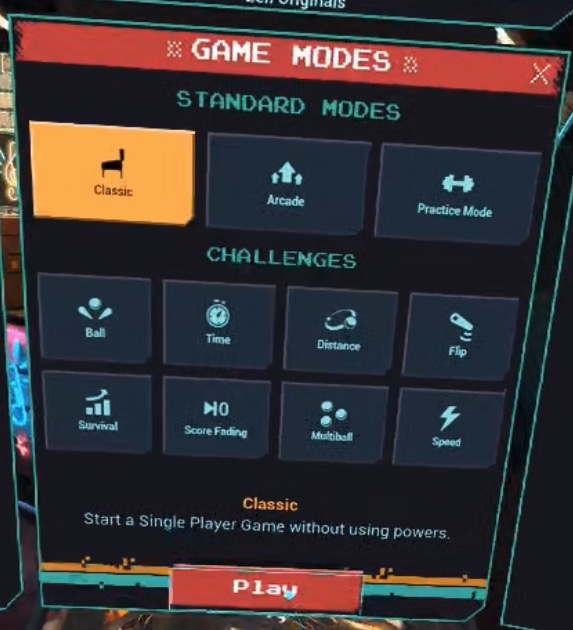
- Use your right controller to select a pinball table.
- Hit the red “PLAY” button.
- A popup will ask if you’d like to use the X-Arcade device — select “X-Arcade”.
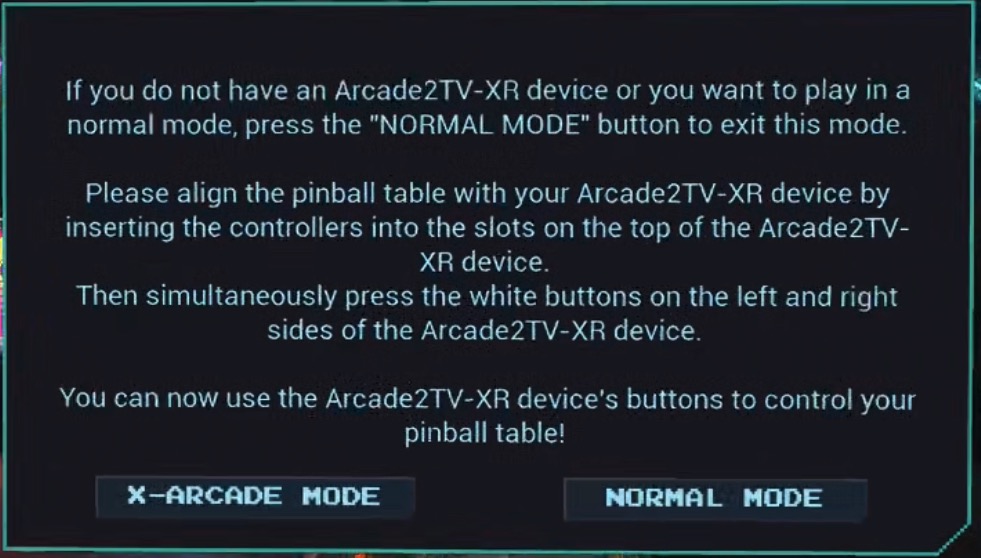
- The environment will switch to transparent passthrough mode, allowing you to see your physical unit.
- Insert both Quest controllers into their designated slots on the Arcade2TV-XR (press all the way down for alignment).

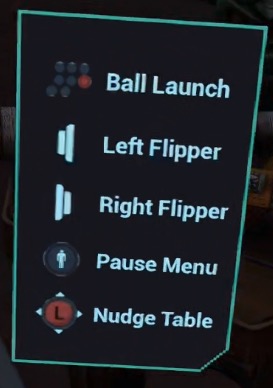
- Press the left and right flipper buttons on the Arcade2TV-XR to complete the mapping.
- Start playing!
Mapping in Mixed Reality Mode:
- Enter MR mode and confirm that X-Arcade mode is enabled.
- Place your virtual pinball table in the room using passthrough view.
- Use your controller to select the table and hit “PLAY”.
- Choose “X-Arcade” when prompted.
- View your physical setup through passthrough.
- Insert both controllers into the unit’s slots.
- Press both flipper buttons to complete alignment.
- Enjoy pinball in MR mode!
In-Game Tips:
• After a game ends, use the flipper buttons to choose “restart” or “exit.”
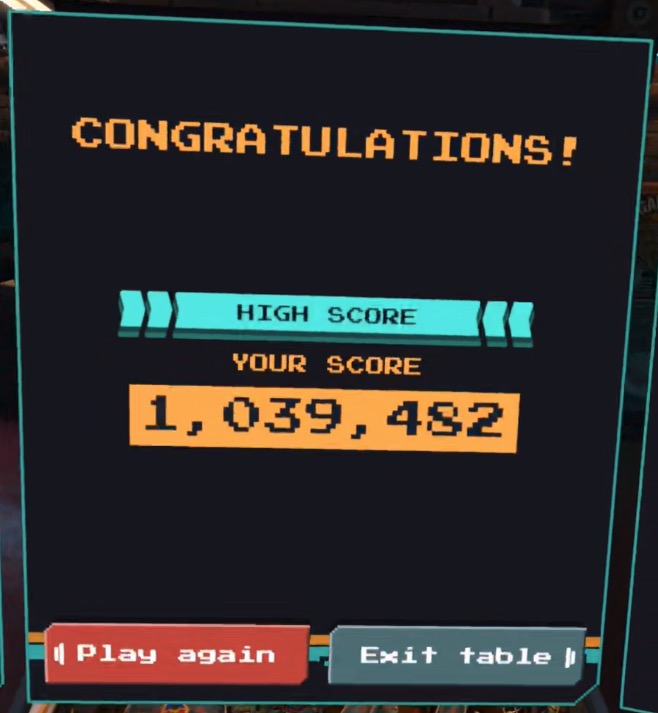
• If the alignment drifts, long-press the right controller’s menu button while both controllers are docked.
• All mini-games within the pinball tables use the left flipper to select and plunger button to confirm.
• Use the left joystick on your Arcade2TV-XR to nudge the table.
If you run into any issues, feel free to reach out to us at [redacted email]. We’re here to help make your VR pinball journey as fun and seamless as possible.
Let’s play!
Source article: <https://support.xgaming.com/support/solutions/articles/12000104205-how-to-use-arcade2tv-xr-with-pinball-fx-vr>