PlayStation 5™+ PC Adapter Button Layout and Instructions
We now offer an X-Arcade to PlayStation 5™ + PC adapter, it requires our 2in1 X-Adapters and Brook's Wingman FGC2 Adapter. This adapter will also allow you to use many other USB gamepads/controllers on your PS5 or PC.
Click here to purchase a PS5™+PS4™ adapter for the X-Arcade™
IMPORTANT NOTES:
- Ensure the Tankstick is set to Mode 1 (default keyboard mode) before use; otherwise, the adapter will not function properly.
- For PS5, the adapter supports all PS5 games.
- Ensure you upgrade the adapter's firmware before use; instructions are provided below.
- To ensure sufficient power for the X-Arcade with this adapter, you must connect two players to the consoles.
- For 2-player play on PS5, you will need two accounts on your console. If you only have one, create a guest account.
- Unlike older consoles, the PS5 assigns controllers to user accounts rather than controller ports. This means you can ignore player labels when connecting the controller to the PS5. Simply log into your account on the side of the controller you want to use.
PS5 2-PLAYER SETUP:
Once you have 2 accounts, you will want to do the following to get setup:
- Player 1 side: Press Share+Option simultaneously to initialize the controller, this may take you to the login/Shut Down or menu screen (this is normal). Press Share+Square or Share+Triangle to get the controls working, then log into your main user account.
- Player 2 side:Press Share+Option on the Player 2 side of the controller, then Select+Square or Select+Triangle and log into the secondary/guest account.
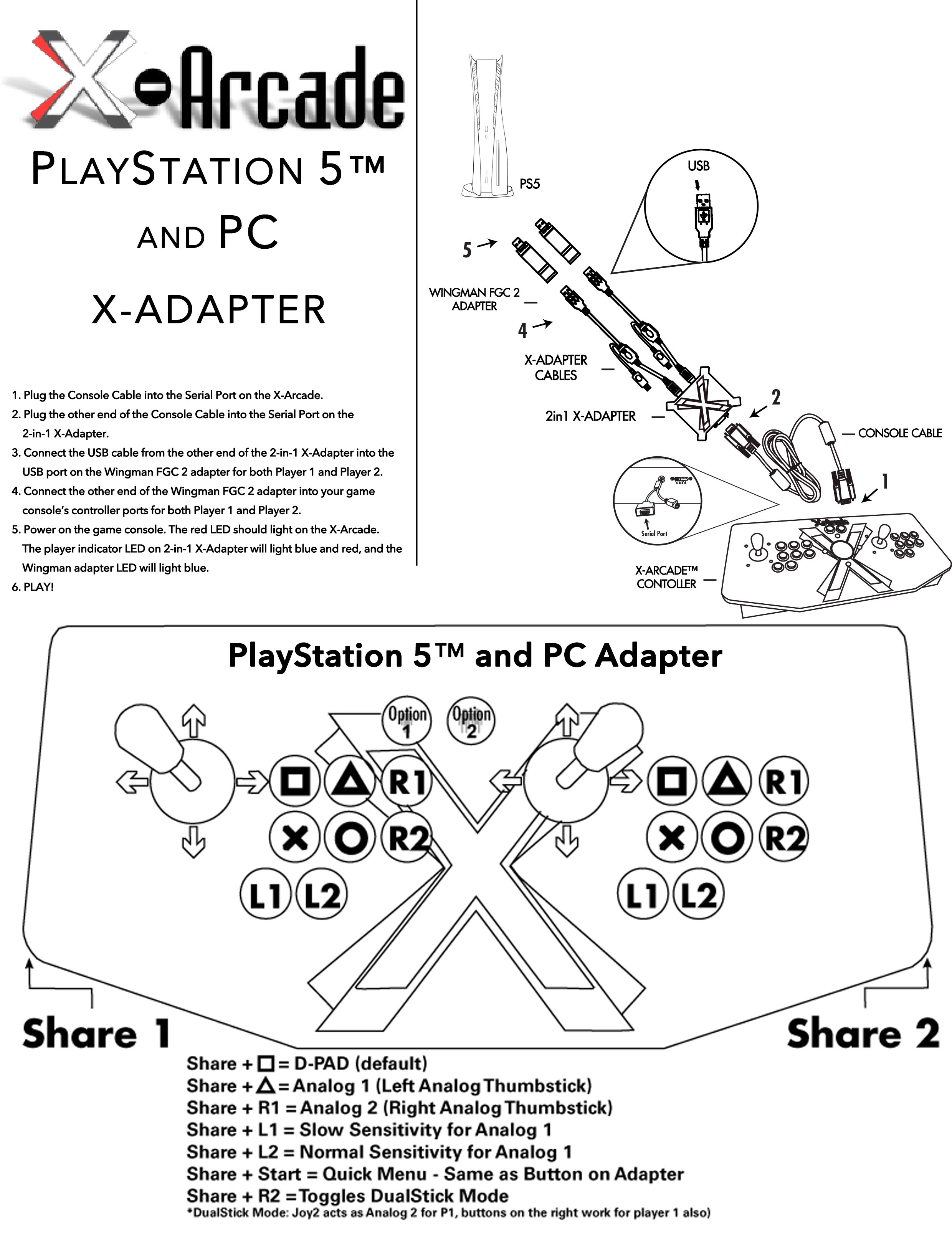 Hold the Share button and tap the Option button once = tapping the PS button on a PS5 gamepad. To exit a game, while continuously holding the Share button press Option and then immediately (While still holding Share) press Square or Triangle.
Instructions and the full list of functions available here.
Turbo(Rapid Fire) Function Settings:(AVAILABLE SOON)
Button Remap:(AVAILABLE SOON)****
Macros:(AVAILABLE SOON)****
Firmware Upgrade:(AVAILABLE SOON)
Troubleshooting:
- If the adapter is timing out after a few minutes of play, you need to update the firmware on the adapter using the instructions above. IMPORTANT:If you still have the timeout issue after doing the firmware update, then you will want to try flashing it on a different PC again (or at the least a different USB host controller). Users have reported the software reporting flashed successfully but it still timing out, but flashing it again on a different PC resolved it.
- The first thing you want to do is test the X-Arcade™ on your PC using the X-Arcade™ Test Utility Program to check that it is being recognized by your PC properly. If your controller works in the X-Arcade™ Test Program, then your controller is fine. Be certain to test the pinball buttons and Option buttons since they are used to initialize the adapter. Run the X-Arcade™ Test Program.
- If you have trouble getting both players to work at the same time, see instructions at the top of this page for doing so.
- If you are having problems getting it to work, be sure to update the firmware. Download Firmware Upgrade (choose download for PS5)(AVAILABLE SOON)
- If issues persist but your X-Arcade works on the PC with our test program, try hooking up another Wingman FGC supported USB controller with the Wingman FGC2 Adapter and connect to the PC directly. If you have an Xbox Original, bypass the Wingman FGC2 adapter and use the 2 in 1 adapter to connect to the Original Xbox to troubleshoot the cause.
Source article: <https://support.xgaming.com/support/solutions/articles/12000102164-playstation-5-pc-adapter-button-layout-and-instructions>