Nintendo Switch™+PS4™+PS3™+PC Adapters Button Layout and Instructions
This adapter kit also allow you to use many other USB controllers on your SWITCH™, PS4™ or PS3™ consoles. See the compatible USB controller list from Brook for more details:
Click here to order the X-Arcade™ SWITCH + PS3/4 + PC Adapter kit
IMPORTANT NOTE for X-Arcade™ Switch™+PS4™+PS3™+PC Adapters Kit:
IF YOU USE THIS KIT TO PLAY IN PS4 OR PS3 CONSLES PLEASE REFER TO THIS PAGE HERE FOR INSTRUCTION:
PlayStation 5™(Fighting games only)+ PlayStation 4™ Adapter Button Layout and Instructions
IMPORTANT – READ BEFORE INSTALLATION
- Ensure the Tankstick is set to Mode 1 (default keyboard mode) before use; otherwise, the adapter will not function properly.
- Make sure to note the section on Digital/Analog, which will alleviate many issues you may encounter.
- X-Arcade™ programming is for the PC/Mac™ only, and has no function on game consoles.
- The Trackball is not supported by this X-Adapter™. You may, however, be able to use the trackball in the USB port of your console directly.
- 4-player: If your console only has 2 USB ports you will need to use a USB hub to connect for 4-players.
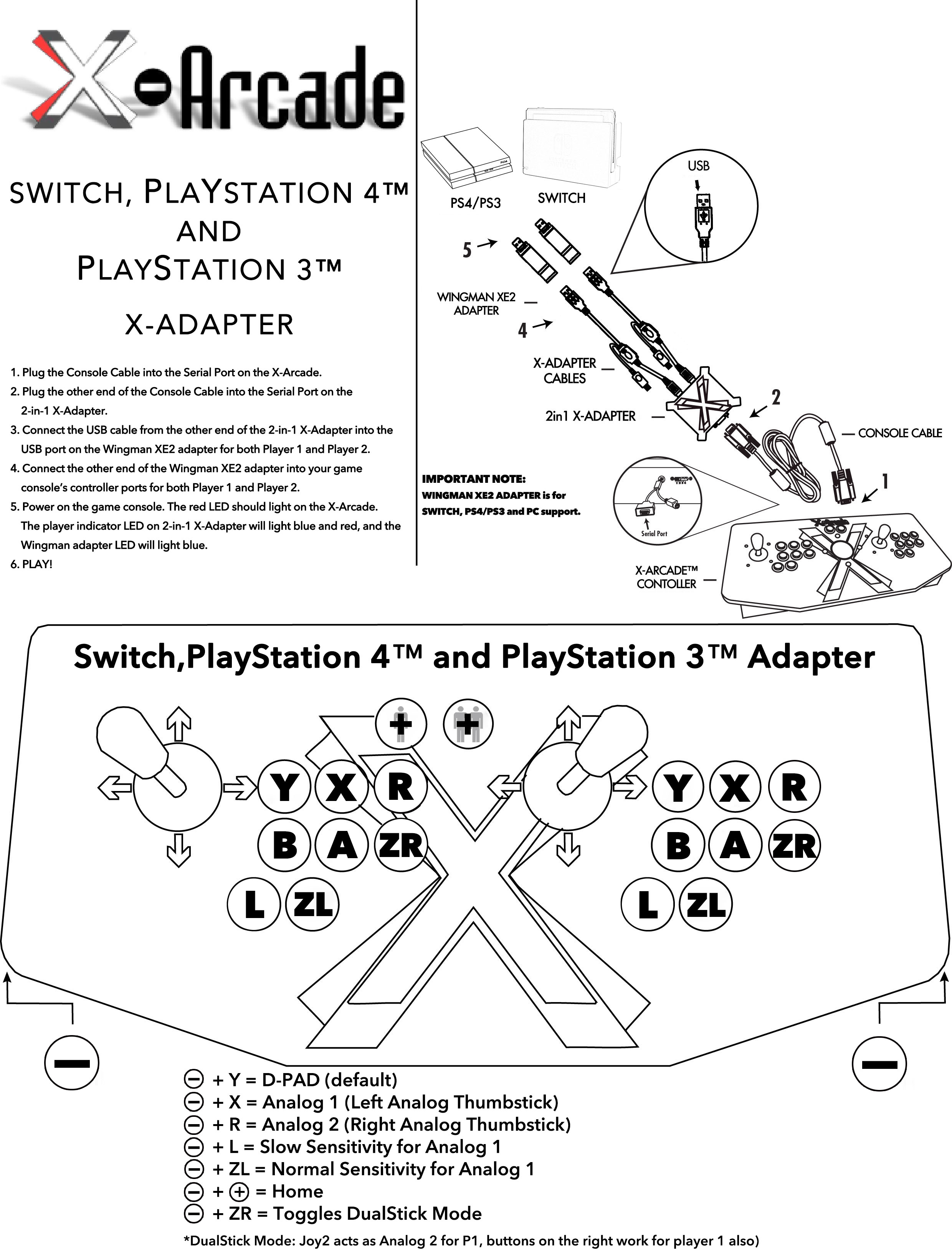
- To access the SWITCH Menu during gameplay, simply press '-' PLUS '+' on the X-Arcade™.
OPERATION WITH GAME CONSOLES
On gaming consoles, the unit operates just like a standard gamepad with buttons assigned to the arcade buttons.
Digital vs. Analog Control Overview: Handheld gamepad controllers for newer game consoles feature both digital and analog controlling devices, a D-pad and two analog thumb-sticks. Most games use the D-pad and/or left thumbstick to operate a game. The X-Arcade™ supports only one digital joystick per player, therefore adjustments need to be made to select whether this joystick functions as the D-pad or the left analog thumbstick. See the key legend above for directions on switching between analog and digital on the SWITCH™, but in general:
Side Button + Button 1 (Top-left) = Digital (D-PAD) Side Button + Button 2 (Top-middle) = Analog 1 (primary thumbstick) Side Button + Button 3 (Top-right) = Analog 2 (secondary thumbstick)
Analog Tilt SensitivityWhile using Analog 1 mode (Select('-'/Modifier1)+Button 2) you can change how sensitive the movement is from normal full-tilt (default) to half-tilt sensitivity. Half-tilt sensitivity would be equal to moving the analog thumbstick on your gamepad to about halfway in any direction instead of fully (full-tilt). This is useful for games that you need more precise movement in, for example in a racing game, or to make your character move slower in your game.
Tilt Sensitivity Mode Toggle: Side Button + Button 7 = Half-Tilt Sensitivity Side Button + Button 8 = Full-Tilt Sensitivity (default)
DualStick Mode (2-Player X-Arcades Only): 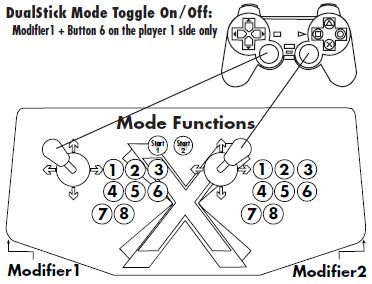 Some games may require the use of 2 control devices simultaneously, for example, console versions of arcade classics like Robotron™, SmashTV™, Crazy Climber™, and Karate Champ™. While the X-Arcade™ is not ideal for all types of games, for example, first-person shooters, it has the ability to play all of them thanks to DualStick Mode.
DualStick Mode makes the second player joystick of a dual X-Arcade™ act like the right analog thumbstick on a gamepad. But it also makes the buttons on the player 2 side mirror those of the player 1 side, so the buttons on both sides can be used for single-player game play. As you may have gathered, this means that DualStick mode is for single-person game play, and requires a 2-player X-Arcade™ controller, it will have no effect on an X-Arcade Solo™ for example.
DualStick mode is toggled on and off by pressing the Modifier and Player 1 side button 6 simultaneously, and while in DualStick mode you can still change Joystick 1 between D-PAD and analog thumbstick mode.
TROUBLESHOOTING
SWITCH:
If your Nintendo Switch is not recognizing the X-Arcade controller, try the following steps:
- Update the Switch Controller: Ensure your Switch firmware and controller settings are up to date.
- Enable Wireless Controller Support: Navigate to your Switch settings and toggle the wireless controller option to "On."
- The first thing you want to do is test the X-Arcade™ on your PC using the X-Arcade™ Test Utility Program to check that it is being recognized by your PC properly. If your controller works in the X-Arcade™ Test Program, then your controller is fine. Run the X-Arcade™ Test Program.
- If you have trouble getting both players to work at the same time, try plugging both Wingman™ XE2 adapters into the USB ports of the console at the same time while the console is already on.
- If the button layout differs from the default, restore the button mapping to default on the Wingman™ XE2 Adapter.
- If you have trouble getting both players to work simultaneously, try plugging both Wingman™ XB2/XB3 adapters into the USB ports of the console while it is on.
- The Xbox adapters will only work with the current 2in1 adapter with permanently attached cables. If your 2in1 adapter has detachable cables, it will not work.
- If issues persist but your X-Arcade works on the PC with our test program, try hooking up another Wingman™ XE2 supported USB controller with the Wingman™ XE2 Adapter and connect to the PC directly. If you have an Xbox™ Original, bypass the Wingman™ XE2 adapter and use the 2 in 1 adapter to connect to the Original Xbox™ to troubleshoot the cause.
- If the issue is confirmed to be related to the Wingman™ XE2 adapter, please contact Brook™ support directly for further assistance.
Using the Nintendo™ Switch™+PS4™+PS3™+PC Adapter on PC, Pi, Shield:
The Nintendo™ Switch™+PS4™+PS3™+PC Adapters also allow you to make the X-Arcade™ work as an DINPUT compatible gamepad instead of a keyboard. It works on PC, Pi, And Nvidia™ Shield this way.
Source article: <https://support.xgaming.com/support/solutions/articles/12000101845-nintendo-switch-ps4-ps3-pc-adapters-button-layout-and-instructions>