X-Arcade Trackball Troubleshooting & Cleaning
IMPORTANT NOTES:- The Horizontal Disabler button on the back of the X-Arcade™ disables the left and right Trackball movement when it is held. It is the blue wire.
- A small consistent veer when thrown forward can be normal; severe direction loss, reversal or missed slow movement is a separate symptom that needs testing. This is because all trackballs sit on 3 guides, see pic. This may be more noticeable at first until you break it in some.
- If you are noticing erratic mouse presses or the trackball is causing other odd issues such as high CPU usage, please open the Tankstick where you will find several unused spare trackball cables (orange/white/brown) that aren't connected to anything. Be sure the rubber sleeves on the ends of the connectors are covering the connectors completely so that they aren't touching each other or anything else inside. You can also just tape these ends with electrical tape if to be sure if you prefer.
- Info on how to adjust the speed of the trackball here.
- Info on installing the trackball correctly here.

Troubleshooting A Trackball Direction Not Working:
- If left/right movement is not working, be sure you are not pushing the horizontal disabler button (the button on the back) against something while playing.
- Try connecting to your PC with the other connection (PS/2 or USB).
- Ensure no specialty drivers are installed for another third-party mouse that may be interfering with the trackball.
- If possible, test movement on a different computer to make sure it's not a PC specific issue.
- If connecting via a USB Hub, try instead connecting directly to the USB port.
- With the X-Arcade™ Trackball connected to your PC, check Windows Updates from your PC settings and download all updates for your hardware.
- If left/right movement is still not working, open the X-Arcade™ and remove one of the wires from the Horizontal Disabler's microswitch. If the direction works this way, the microswitch may be bad, try swapping it with another button to verify this.
- If the steps above did not fix the issue or up/down is not working, open the trackball housing (see Trackball Cleaning below for instructions) and check that the masking/reader wheels are firmly screwed onto the rollers, these black plastic wheels should not move independently of the metal rollers.
- Be sure that the 2 PCB boards are also properly seated in the slots in the housing for them.
- Check that all wires are firmly attached to the PCB boards.

Trackball Cleaning:
Input devices using mechanical mouse/trackball parts including the X-Arcade™ trackball may need to be opened and cleaned periodically. The frequency this needs to be done can be affected adversely by spilling liquids on the ball or using it with sticky/dirty fingers. When moving the trackball feels slow or rough, it’s time for a cleaning. Our trackball was made to be user serviceable just like at a real arcade, it does not void the Lifetime Warranty to open it.
IMPORTANT NOTES
- For best performance, only tighten the screws and bolts on the trackball housing just enough to hold it firmly. Over-tightening will inhibit performance.
- Do not open the plastic trackball housing upside-down (ball facing down) as this will cause all of the parts to fall out. It's not a huge deal if you do, but this will save you a 'D'OH!' moment.
Opening and Cleaning the trackball:
- Unplug the X-Arcade™ Trackball from the computer
- If your trackball is inside of an X-Arcade controller, first open The X-Arcade housing, instructions here.
- PIC: Remove the 4 bolts holding the plastic trackball housing into the wood casing.
- PIC: With a Phillips head screwdriver, remove the 4 screws holding the trackball plastic casing together. Do not attempt to open the trackball plastic housing in this step.
- PIC: Grab the bottom and top part of the plastic housing with both hands, holding them closed/together firmly, and turn it over so that the ball is facing up.
- PIC: Remove the top half (ball side) of the plastic housing.
- PIC: Remove the ball, and clean it with tap water and, if needed, dishwashing detergent. Dry it with a lint-free cloth. DO NOT get water near the electronics.
- PIC: Clean the rollers and idler (the 3 metal cylinders that the ball sits on) using a pre-moistened cleaning swab or cotton swab with rubbing alcohol. Allow surfaces to dry completely before reassembling.
- Reassemble following the above steps backward.

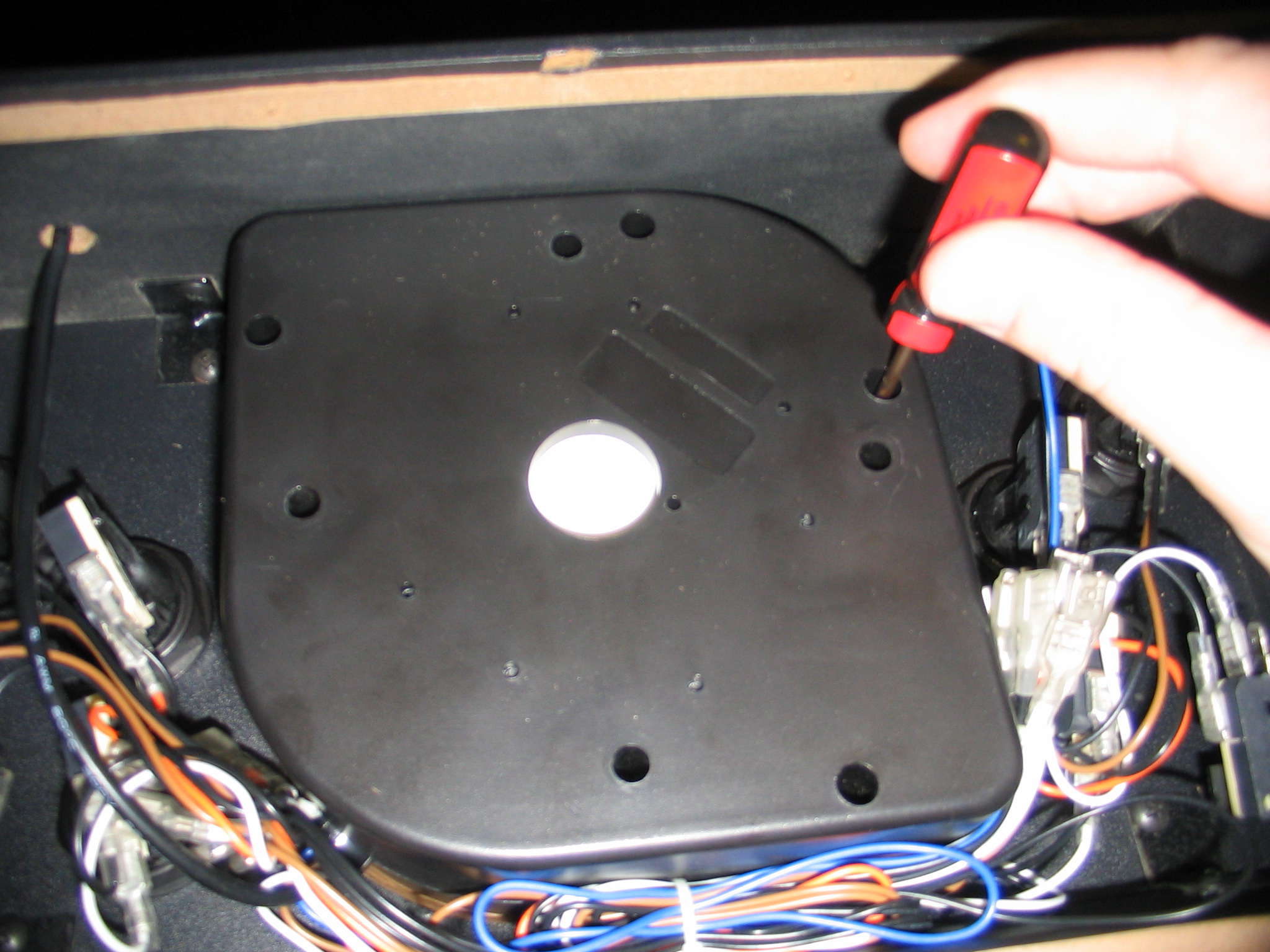

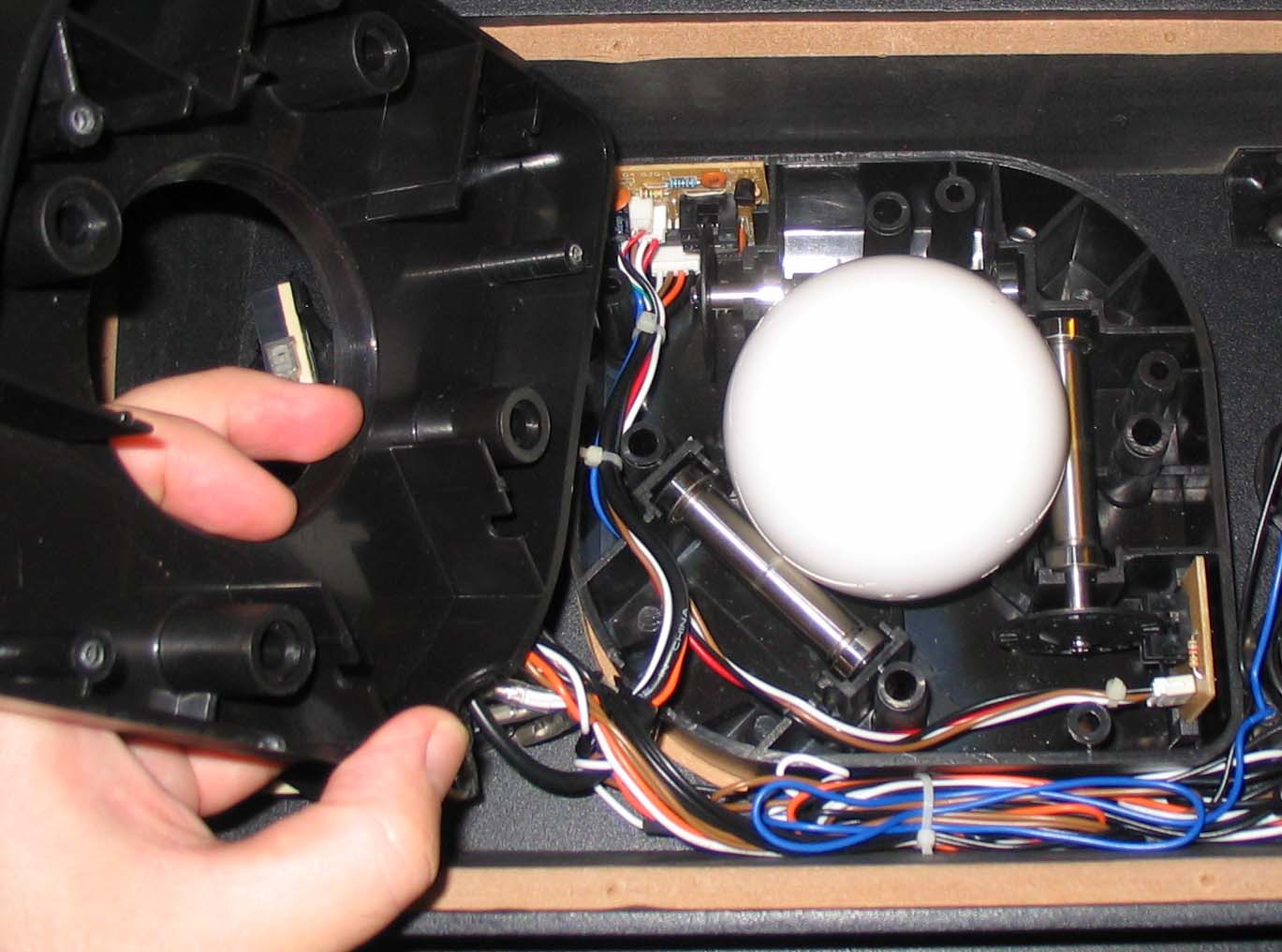
Your X-Arcade™ Trackball is cleaned, and ready for action!
Lubrication: identify the assembly first
For the original Arcade2TV-XR trackball covered by later support guidance, do not lubricate the ball or rollers. Support explains that oil on the contact surfaces can cause slipping/drift and worsen tracking. Keep cleaned contact surfaces dry.
The historical non-XR bearing guidance allowed a small amount of 3-in-1 or Aero oil on bearings only, never grease or oil on the rollers. Do not automatically transfer that older instruction to an XR assembly, apply oil as a tracking fix, or assume all revisions have the same bearing service procedure. If bearing service is needed, ask support to identify the exact assembly and applicable instructions first. Disconnect power and external cables before service.
In one original-XR case, recurring rightward tracking failure remained after dry cleaning and trying another ball. Support arranged replacement after reviewing the customer's video, but the final replacement outcome was not reported. Repeated recurrence needs review of the exact assembly and previous replacement history rather than a guaranteed lubricant cure.
Trackball wiring:
The Trackball assembly may look complicated because it has many wires and connectors coming out of it, but there actually only 5 types of wires with several duplicates of each. Here are the functions for each wire color respectively :
- Black = All black wires are ground (use a ground with each wire below)
- White = Mouse Button 1 (mouse 0 in MAME) - On X-Arcade = Left Pinball button
- Brown = Mouse Button 2 (mouse button 1 in MAME) - On X-Arcade = Right Pinball button
- Orange = Mouse Button 3 (mouse button 2 in MAME) - On X-Arcade = Red-lit Exit button
- Blue = Horizontal Disabler (use for perfect straight shots in Golf or Bowling)
Source article: <https://support.xgaming.com/support/solutions/articles/12000003091-x-arcade-trackball-troubleshooting-cleaning>
Original XR trackball still drags after cleaning and mounting checks
Disconnect the controller's power and external cables before opening or adjusting the assembly. Keep the housing supported. Slightly easing overtightened mounting nuts can reduce housing distortion; do not remove the nuts or leave the assembly insecure. Test only after safe reassembly.
If the ball still drags, rattles or requires substantial force after the documented cleaning and mounting checks, tell support those checks were already completed rather than repeating them indefinitely. In one original Arcade2TV-XR case, cleaning and loosening the four mounting fasteners did not restore smooth rolling. Support arranged a replacement trackball assembly, but no installation or final recovery was reported.
Send a short video showing physical rolling, whether the ball stops abruptly or feels gritty, and the checks already tried. A replacement shipment is not a confirmed fix. A separate joystick-sticking problem must be tested independently; replacing the trackball does not prove joystick input is repaired.
Cursor errors on both Windows desktop and an emulator
For a standalone 3-inch X-Arcade trackball or Tankstick trackball, separate physical rolling from pointer tracking. Record the exact assembly and any installation or wiring modifications.
- Test normal cursor movement directly on a Windows desktop outside MAME/RetroPie. Compare slow and fast motion in each direction. Use a direct USB connection and check that the horizontal disabler is not held.
- Compare the same movements in the affected game. If the desktop cursor also loses motion, reverses or behaves erratically, do not keep repeating emulator sensitivity changes as though the symptom were game-only.
- Send support a short video showing the physical ball and cursor together, the desktop/game comparison, assembly label, mounting orientation and checks already tried. Follow the cleaning and direction-test sections only as applicable; disconnect power before internal work.
One customer confirmed inconsistent tracking on Windows after seeing it in RetroPie/MAME. Support arranged a replacement, but no installed replacement result was reported. This corroborates a problem outside the emulator; it does not identify a bad chip, establish a mounting-angle limit or prove that a replacement fixed it. Any extra bearing, cut-wire or alternate harness question needs the exact assembly reviewed separately.
Original XR: persistent downward jumping is not just normal veer
Scope: original Arcade2TV-XR / Tankstick VR, not XR MAX or a different trackball assembly. A slight consistent veer is different from a new physical jump accompanied by hesitation of the desktop cursor or game movement, including when rolling slowly.
In one reviewed case, forward and left rolling were smooth while right/down rolling jumped. Support-directed easing of the four mounting nuts made the ball smoother but did not remove the downward jump. An early explanation that the angled panel made this normal did not resolve the report; after reviewing another video, support selected a replacement trackball. The customer confirmed receiving and installing it and reported that the new assembly worked without issues. This establishes a successful assembly replacement in that case, not a proven shipping-damage cause or a universal replacement requirement.
- Compare physical rolling and cursor movement in all directions, slowly as well as quickly. Report whether the problem is new and whether it appears outside the game.
- Follow the applicable safe mounting/cleaning checks above. Disconnect power and external cables before internal work, support the housing, and keep the assembly secure. Retest after reassembly.
- If easing an overtightened mount only partly helps, give support a short video showing the ball and cursor together and the checks already completed. Do not repeatedly dismiss persistent cursor hesitation as normal angled-panel behavior or keep repeating the same partial fix.
- Have support identify the exact assembly before arranging a matching replacement. After an approved replacement, test the same directions and original failing setup; shipment or thanks alone is not repair confirmation.
The case does not specify a failed bearing, sensor or roller, and does not establish compatibility with another controller generation. Payment, warranty and shipping arrangements require separate case review.
Legacy Tankstick trackball works on one PC but not a new PC
Compare the same trackball and its actual connection on both computers before assuming a failed assembly or unsupported operating system. A separate working mouse or newly listed HID device does not establish that this trackball sends motion correctly. Record whether normal desktop movement fails as well as movement inside a game.
In one reviewed legacy Tankstick case, the trackball worked on a Windows 7 PC but not a new Windows 11 PC, although another mouse worked. Removing HID entries and reconnecting did not help. The customer clarified that both computers used USB, correcting an initial PS/2-versus-USB assumption. They then replaced an inline HDMI-to-VGA display adapter with a direct HDMI cable and explicitly reported that the trackball worked afterward.
If this pattern matches your setup, compare a supported direct display connection without the optional video converter, keeping the trackball connection unchanged, and retest desktop motion. Record the exact adapter, USB path and result for support. This is one confirmed setup change, not proof that Windows 11 is incompatible, that every HDMI-to-VGA adapter causes USB problems, or that adapter power draw was the cause. Do not buy a replacement trackball or USB cable solely from the operating-system difference. If it still fails, report the already-completed host/cable comparisons so support can investigate without repeating them.
Legacy trackball: mouse buttons work but neither motion axis responds
For an older standalone X-Arcade trackball assembly, working mouse buttons do not prove that the motion-sensing path is working. In a reviewed case, motion remained completely absent on several PCs with both USB and PS/2 connections. The customer reported a clean interior and no improvement after insulating the unused cable ends. Support first questioned the pictured PCB, then recognized the older product after requesting wider photos and arranged a replacement trackball assembly without the outer case. The customer explicitly confirmed that the replacement worked.
Record motion in both axes, mouse-button operation, the exact assembly and host/connection tests already completed. Disconnect power and external cables before any internal inspection. Send support clear overall-unit and board-label photos before selecting a part; an unusual component arrangement in a photo is not evidence that it should be unsoldered or modified. Do not repeat cleaning or emulator mapping indefinitely when desktop motion is absent across tested hosts.
This confirms an assembly-level replacement for that legacy unit, not a diagnosed capacitor, resistor, sensor or cable failure, and not compatibility with an XR or XR MAX assembly. Have support verify the matching replacement and service terms. After an approved replacement, test both motion axes and mouse buttons on the same previously failing setup; shipment alone does not establish recovery.