Maximus Arcade Frontend and the X-Arcade (INCLUDES REGISTRATION / CODE INFORMA
Maximus Arcade is a commercial Frontend software that allows for seamless interaction with multiple arcade and console emulators while keeping the Windows environment hidden. Although best suited for use in arcade cabinets, it can be configured for use in a kiosk or simply running on a computer with a keyboard, trackball, or game pad. Maximus is the only frontend that you have to pay for, but its features make it well worth considering.
Updated 2/26/19 - MAME 0.206
IMPORTANT NOTES:
- Only enable and set up one emulator at a time or you will have problems! Start with MAME which is enabled by default (under the Display Order Tab).
- Never add add anything to the optional lines (Image/Movie/Marquee) until you have the emulator working with a few ROMs!
- *If you have any lines pointing to a folder that does not have any valid files that Maximus is looking for you will get the Invalid Media Locations error!*For this reason only add one line at a time and test it before adding more.
- If you need more help see the Troubleshooting section below and the official Maximus Arcade Documentation and Help. We do not offer any support for Maximus Arcade, only our hardware.
Easy Maximus Arcade setup for X-Arcade on MAME™:
- Download Maximus Arcade (30 day trial), Extract to the default Destination Folder which is c:\(NOTE: If you extract it to a different drive/folder you will have to figure out how to edit the batch files for that on your own). Once extracted, we would recommend going to the C:\MAX 2.10\Frontend\ folder and right-clicking on both Maximus Arcade.exe and Preferences.exe and choosing 'Send To' > 'Desktop (create shortcut)' which will do just that.
- In the C:\MAX 2.10\Frontend\ folder run the Preferences.exe. Under the 'Display Order' tab you will see that MAME is already enabled by default. Don't add any more yet, and never add more than 1 at once and only after you've verified the ones you do have enabled are working. Preferences is also where you can make changes to the controls for the Maximus Frontend, but by default it's already set up for X-Arcade use.
- Under the 'Configuration tab' (with 'Configuration for' set to 'MAME') you will see that the ROMs folder is set to C:\MAX 2.10\MAME\roms\, which is where you will want to drop some ROM files (don't unzip them).
- With ROMS now added, run the Maximus Arcade.exe and wait for it to search for your games (black screen) until is opens. If you get an error now, you likely didn't add any proper ROMs or you need to read the Important Notes at the top.
- Play!
Maximus Arcade Usage
- To exit Maximus, while in the menus (not in a game) on the keyboard press Right Ctrl + Q(hold Ctrl key on right-side of Space Bar and press the letter Q key)
- When you add more ROMs, you will need to open Maximus Arcade, right-click anywhere on the screen and choose "Refresh Game List". Alternatively open Preferences (Use the keyboard's RIGHT-SIDE CONTROL KEY (NOT LEFT) CONTROL+P while in the front end, or the Preferences link found at C:\MAX 2.10\Frontend) and choose the Configuration tab. Next to "Configuration for" choose the emulator you want to look for new ROMs in (example MAME) from the drop-down list. Next click on the "Scan" tab at the bottom, and put a check next to "Force rescan of media folder". Close preferences, your screen will be blank for a few minutes while it is updating. If your ROMs don't appear or don't work see our ROMS page. NOTE: Upon first launch you will get a black screen while Maximus does its initial scan of your games, and anytime you tell it to scan for new games.
Maximus Arcade Documentation and Help
Maximus Arcade Forum (closed, but searchable) Arcade Controls Forum: Maximus SupportMaximus Arcade FAQs
Maximus Arcade GUI Button Layout: 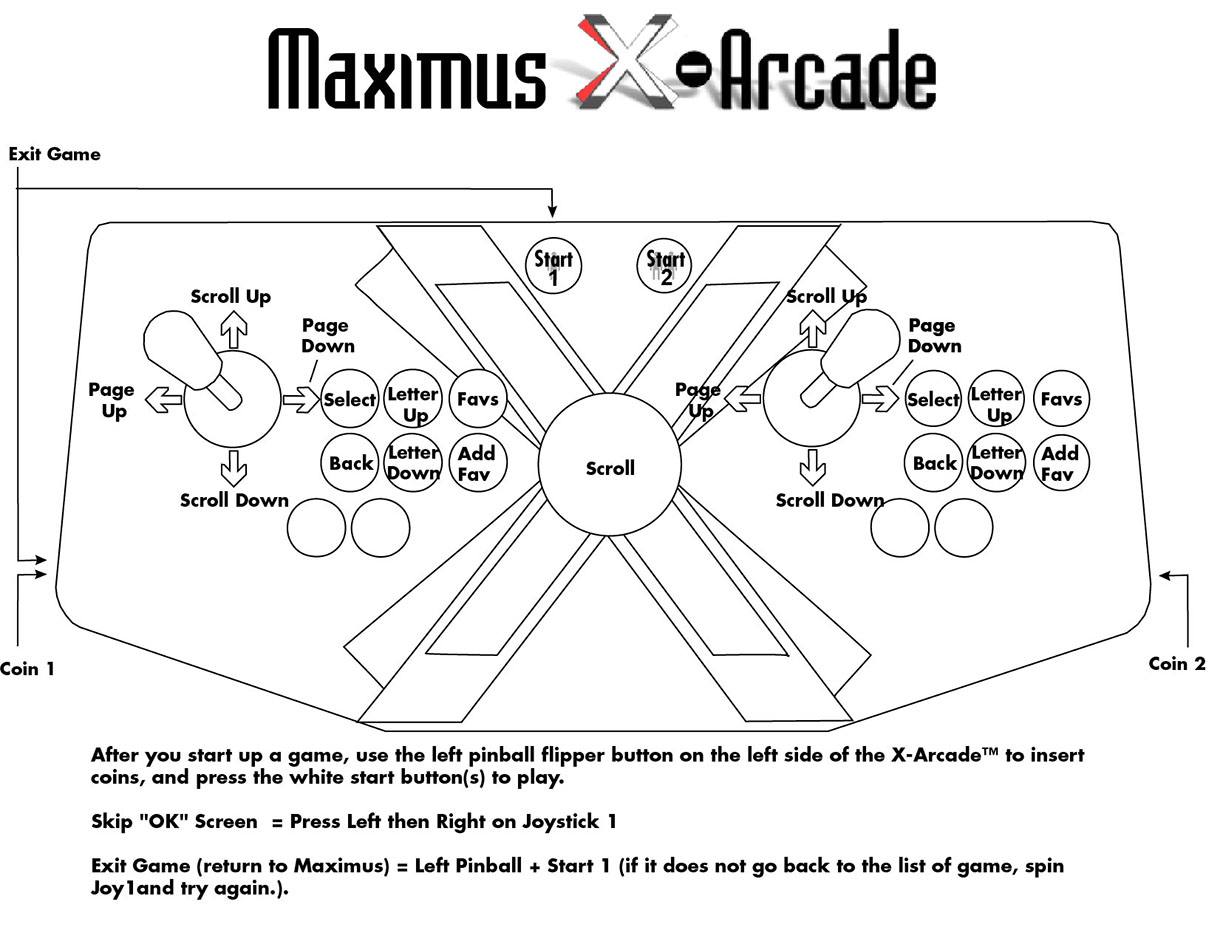
| Function: | X-Arcade | | --- | --- | | Scroll Up | Joy Up | | Scroll Down | Joy Down | | Scroll Left | Joy Left | | Scroll Right | Joy Right | | Page Up | Joy Left | | Page Down | Joy Right | | Page Up Letter | Button 2 | | Page Down Letter | Button 5 | | Select | Button 1 | | Previous Menu | Button 4 | | Favorites | Button 3 | | Add Favorite | Button 6 | | Exit Game (return to Maximus) | Start 1 + Left Pinball - (if it does not go back to the list of game, spin Joy1 and try again.) | | Exit Maximus Arcade | Start 2 + Right Pinball or Red Lighted Button |
Troubleshooting:
- Invalid Locations: When you add an emulator to Maximus it's going to also add a ROM directory for you as well as possibly some media directories. If you have a ROM/media location set that doesn't have any valid file types in it you will get the Invalid Locations error. So for example, if you have a directory set for Image or Movie but don't have any correct images/movies in that folder (or they are not named correctly), you will get the error. For this reason, always start with just the emulator.exe location and ROMs directly ONLY, and make sure that works before adding more directories for media. And obviously ONLY ADD ONE EMULATOR AT A TIME!
- There is a known Windows software bug with exiting Maximus Arcade on older model X-Arcade controllers, click here for info and workarounds.
- Disable 'Sticky Keys' and 'Filter Keys'.
- Screen is flipping sideways or upside-down when I play?
Can't Exit Game Or Direction Stuck The workaround options Option 1. Spin Joy1 in a complete circle before exiting a game. If you get the black screen don't panic, just spin joy1 again and use the exit command again. Option 2. Turn off numlock when using Maximus (now joy1 on the X-Arcade acts like arrow keys) Option 3. Reprogram the X-Arcade to use different keys for Button 4 (Shift) or Joy1, change settings in Maximus to match.
I also have a few workarounds if you do get the black screen bug so you don’t have to reboot the PC:
- If you move joy1 in all directions (or technically just the direction it got stuck in), you can then use the Exit Game command to get back to the Maximus menu.
- Hit ALT+TAB and then ALT+F4 to close Maximus.
- Hit the Windows key (or CTRL+ESC), then right-click on the taskbar button for Maximus and choose close.
We noticed that you cannot exit Maximus using ALT+F4 unless you first hit Alt+Tab. I don’t know if this is related or helpful.
More help: Arcade Controls Forum: Maximus Arcade MAXIMUS ARCADE CODEYou must keep this email and your registration code. If you lose the code, we will not generate a new one or retrieve your old one. You are responsible for saving and storing this license code. The Unlock code is case sensitive and it's recommended the three lines of the code be copied and pasted from this email into the three fields of the MA registration window, making sure there are no spaces at the front or end If you haven’t already, download Maximus Arcade here.It does not matter which email you use to register to download the software. Instructions And Setup Documentation:How To Use With X-Arcade Joysticks Copy and paste your information below exactly as shown into Maximus Arcade when it asks for it with NO SPACES IN THE CODE OR EMAIL ADDRESS FIELDS (use 2.10 code): Registration Code for v2.10:NAME: code44934857842328345EMAIL: [[redacted email]](mailto:[redacted email])CODE: 493F-94D5-DBAF-CB63 Note: You don't use your own email or name, this is unique for your purchase. If you lose this email or code, we will not send another one.
Source article: <https://support.xgaming.com/support/solutions/articles/12000003061-maximus-arcade-frontend-and-the-x-arcade-includes-registration-code-informa>